
Overview
Sellercloud allows you to sync a Purchase Order (PO) to an AWD Inbound Shipment. This is a convenient way to streamline the process of purchasing inventory and sending it to Amazon’s Distribution Centers.
There are two ways to sync a PO and an AWD Inbound Shipment:
- Link – This option is used for direct dropshipping from your Vendor. It copies over all product data and connects the PO and AWD shipment.
- Copy – This option allows you to copy product information with a single action, without linking the PO and the Shipment. In this case, you will receive the purchased quantity in your warehouse and ship it to Amazon yourself.
Sync AWD Shipment to PO
To associate an existing AWD Inbound Shipment with a Purchase Order:
- Go to Inventory > Amazon Inbound Shipments > Manage AWD Shipments.
- Open an AWD Inbound Shipment.
- Click Actions > Generate / Sync to PO.
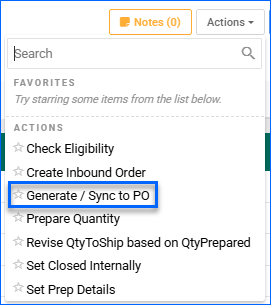
- In the pop-up modal, select one of the 4 options:
- Link to New PO
- Link to Existing PO
- Copy to New PO
- Copy to Existing PO
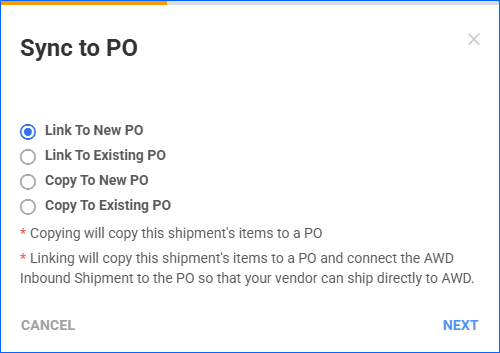
- Based on your selection, continue with the steps in the Link to PO or Copy to PO section below.
Link to PO
Linking an AWD Shipment to a PO connects the two and copies all of the shipment items over to the PO. Then, you can send the PO to your vendor so that they can ship directly to AWD. When linked, the AWD Shipment Details page will have:
- The linked PO ID at the top of the page. This is also a hyperlink to the Purchase Order Details page.
- A new non-editable Ship by Vendor field, indicating which vendor you have sent the PO to.
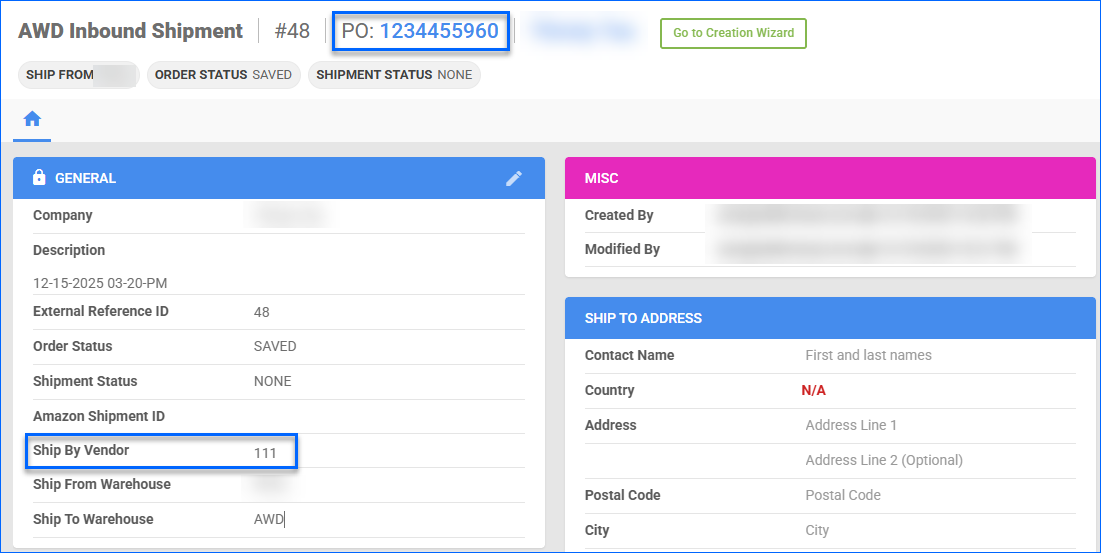
To Link an AWD Shipment to a new PO:
- In the Sync to PO pop-up modal, select Link to New PO.
- Click Next.
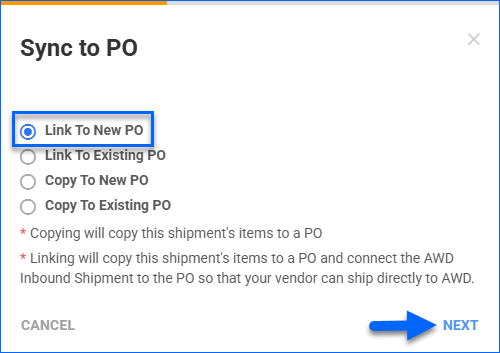
- Fill in the New PO Name. This will be the Description of the new Purchase Order.
- Select a Vendor.
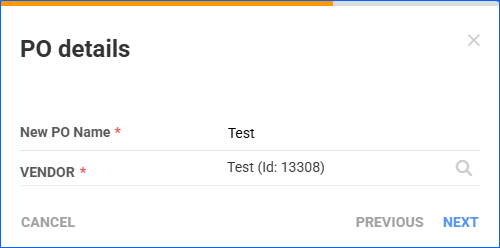
- Click Next.
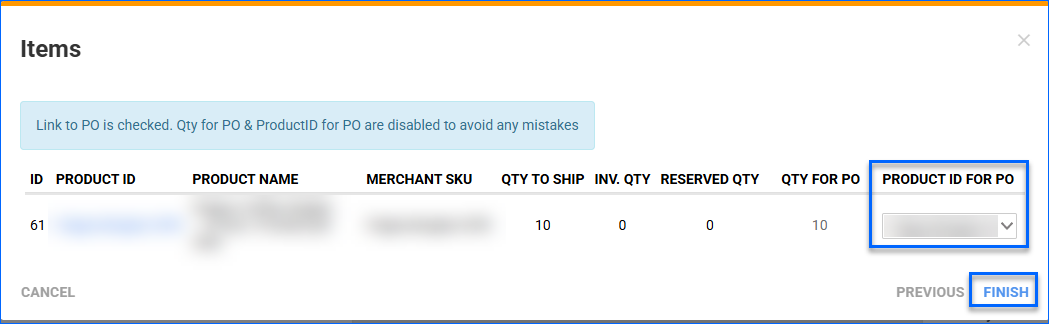
- Review the product information on the next page. You will not be able to edit the product or quantities. However, if you are sending a Shadow SKU to Amazon, here you can select the Parent ID to add to the PO.
- When done, click Finish.
To link an AWD Inbound Shipment to an existing PO:
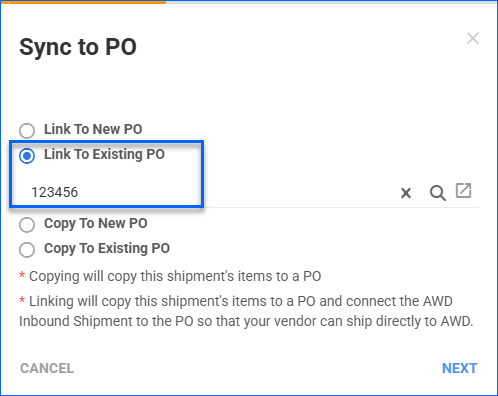
- In the Sync to PO pop-up modal, select Link to Existing PO.
- Start typing in the search bar to find the PO ID.
You can only link a shipment if the existing PO has no items in it and no received quantities.
- Click Next.
- Review the product information on the next page. You will not be able to edit the product or quantities. However, if you are sending a Shadow SKU to Amazon, here you can select the Parent ID to add to the PO.
- When done, click Finish.
Copy to PO
Copying only copies the Shipment’s items to a PO without linking them. Use this option if you plan to receive the PO and then ship the items to Amazon yourself.
To Copy an AWD Shipment to a new PO:
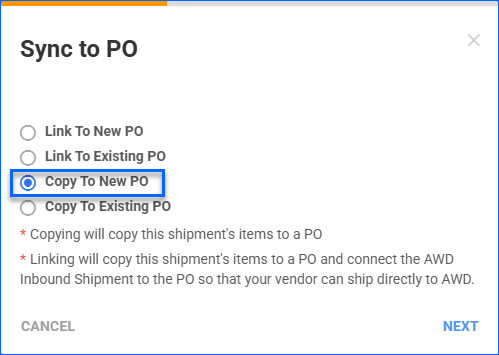
- In the Sync to PO pop-up modal, select Copy to New PO.
- Click Next.
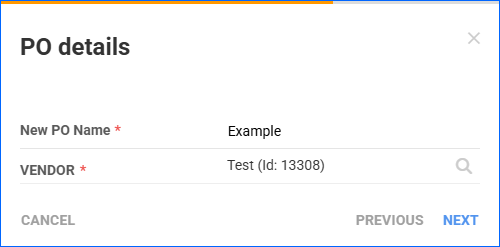
- Fill in the New PO Name. This will be the Description of the new Purchase Order.
- Select a Vendor.
- Click Next.
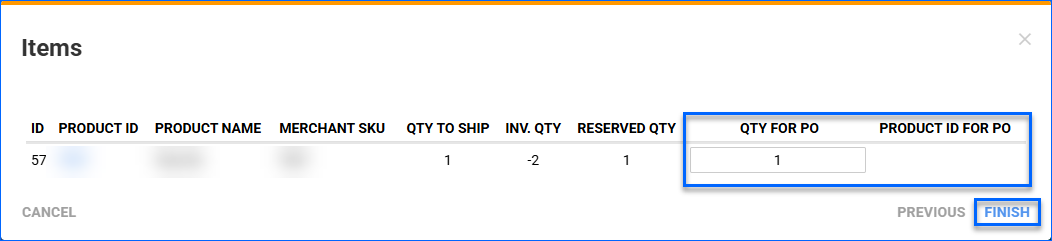
- Review the product information on the next page. You can edit the Qty for PO, and if you are sending a Shadow SKU to Amazon, you can select the Parent ID to add to the PO.
- When you are ready, click Finish.
To Copy an AWD Shipment to an existing PO:
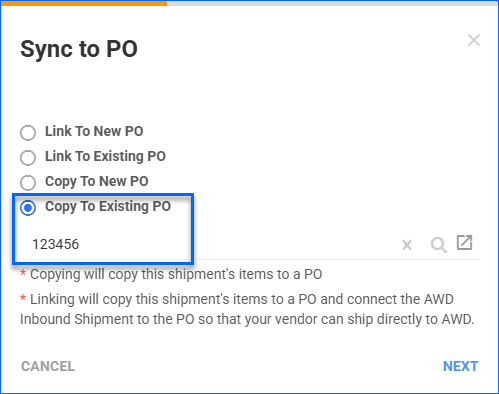
- In the Sync to PO pop-up modal, select Copy to Existing PO.
- Start typing in the search bar to find the PO ID.
- Click Next.
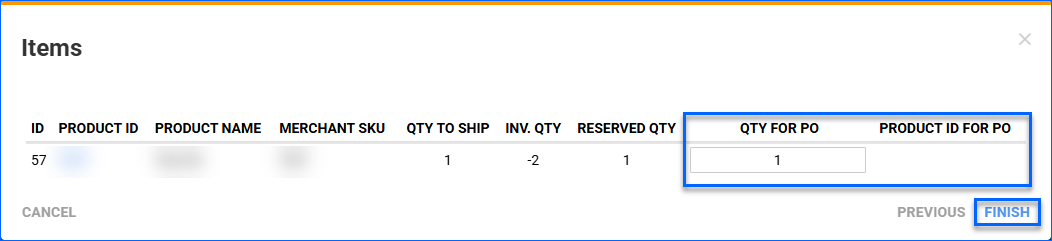
- Review the product information on the next page. You can edit the Qty for PO, and if you are sending a Shadow SKU to Amazon, you can select the Parent ID to add to the PO.
- When you are ready, click Finish.
Sync PO to AWD Shipment
To associate an existing Purchase Order with an AWD Inbound Shipment:
- Go to Purchasing > Manage POs.
- Open the Purchase Order Details page.
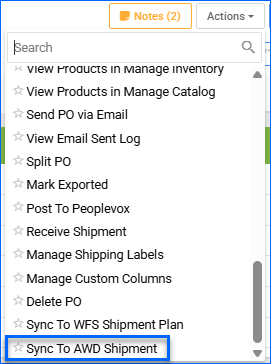
- From the Actions menu > Sync To AWD Shipment.
- In the pop-up modal, select one of the 4 options:
- Link to New AWD Shipment
- Link to Existing AWD Shipment
- Copy to New AWD Shipment
- Copy to Existing AWD Shipment
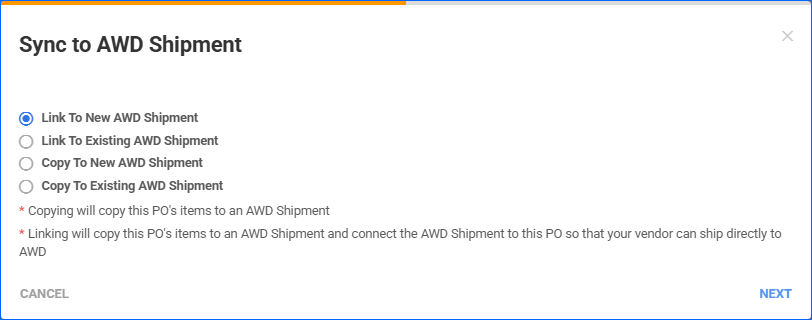
- Based on your selection, continue with the steps in the Link to AWD Shipment or Copy to AWD Shipment section below.
Link to AWD Shipment
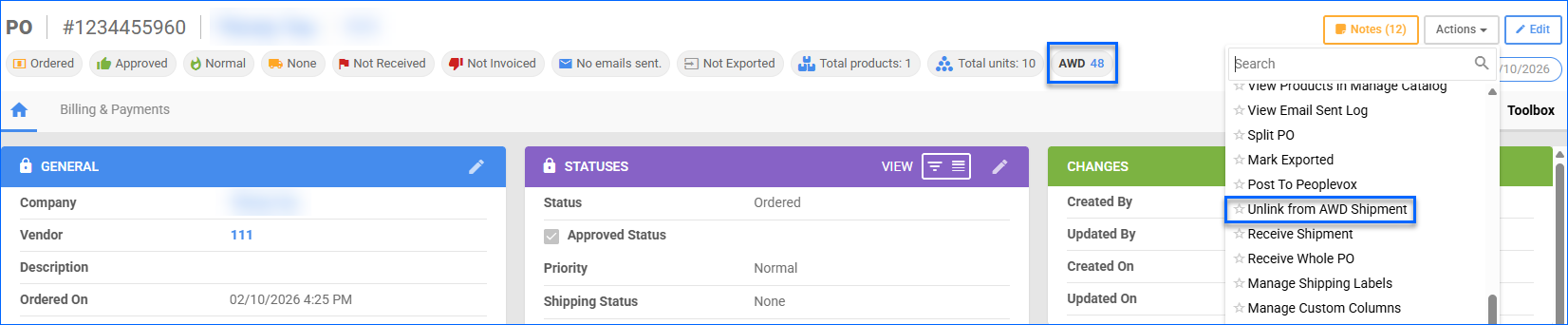
Linking a PO to an AWD Shipment connects the two and copies the PO items over to the shipment. Then you can send the PO to your vendor so that they can ship directly to Amazon. When linked, the Purchase Order Details page will have:
- A pill at the top of the page with the ID of the linked Shipment.
- A new action to Unlink from AWD Shipment.
To link a PO to a new AWD Shipment:
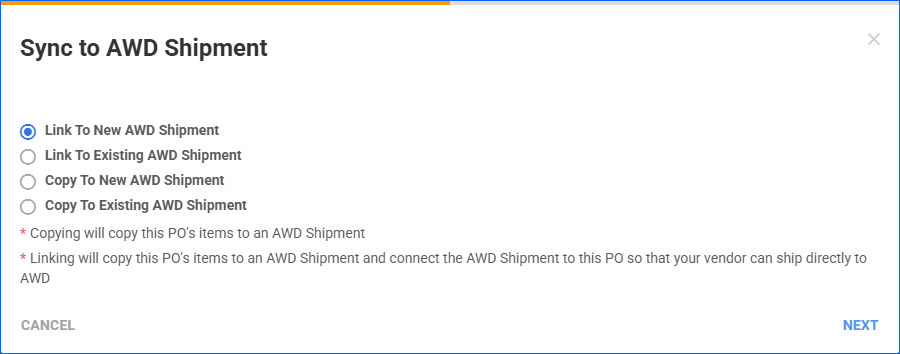
- In the Sync to AWD Shipment pop-up modal, select Link To New AWD Shipment.
- Click Next.
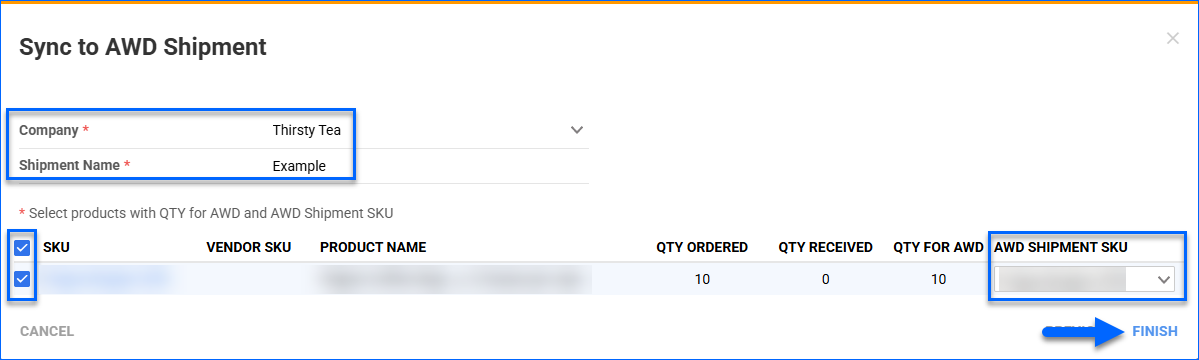
- Select a Company.
- Fill in the Shipment Name. This will be the Description of the new AWD Shipment.
- Select the SKUs from the PO that you want to copy over. If you are sending a Shadow SKU to Amazon, here you can select the Shadow ID to add to the Shipment.
- When you are ready, click Finish.
To link a PO to an existing AWD Shipment:
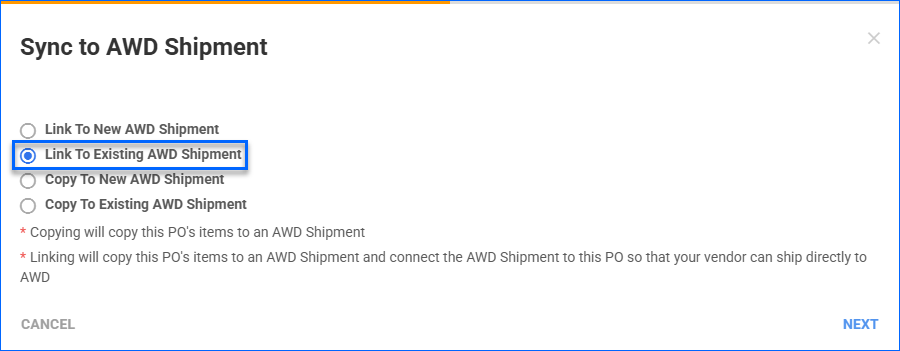
- In the Sync to AWD Shipment pop-up modal, select Link To Existing AWD Shipment.
- Click Next.
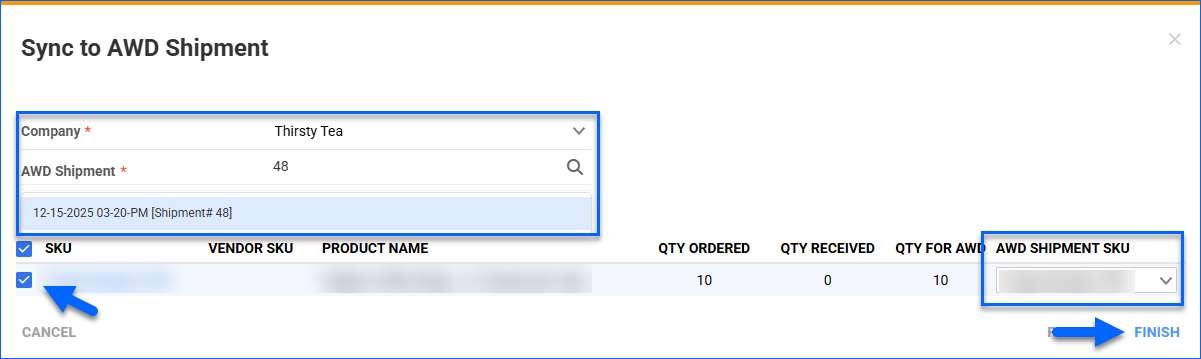
- Select a Company.
- Search for an existing shipment either by Shipment ID or Description (Name).
- Select the SKUs from the PO that you want to copy over. If you are sending a Shadow SKU to Amazon, here you can select the Shadow ID to add to the Shipment.
- When you are ready, click Finish.
Copy to AWD Shipment
Copying only copies the PO’s items to an AWD Shipment without linking them. Use this option if you plan to receive the PO and then ship the items to Amazon yourself.
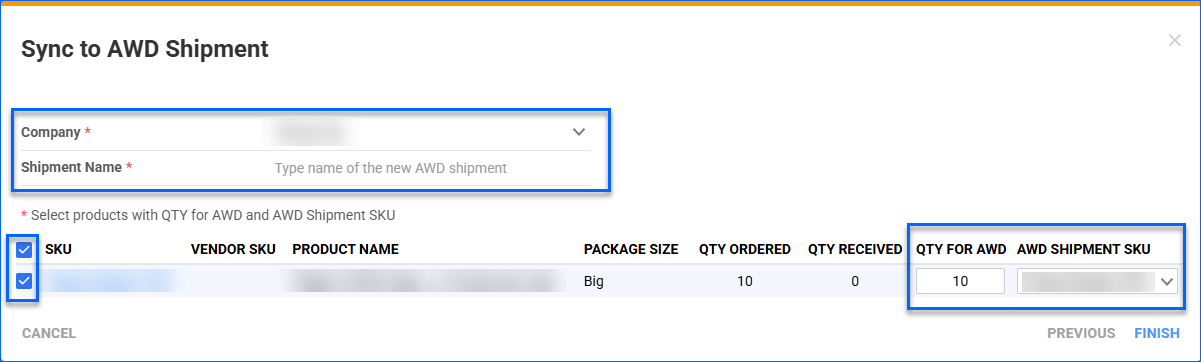
To Copy a PO to a new AWD Shipment:
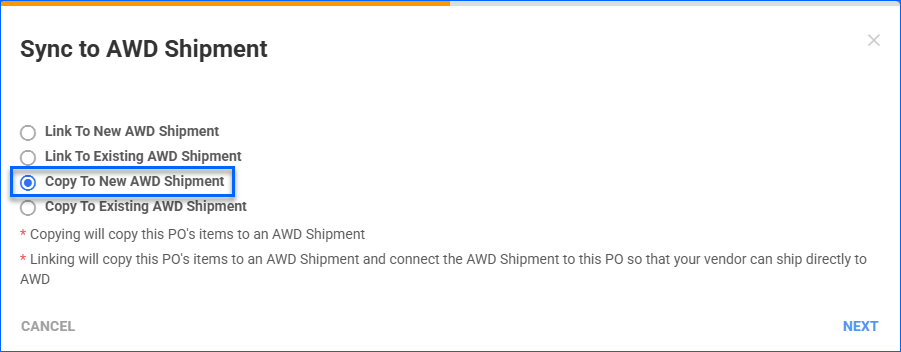
- In the Sync to AWD Shipment pop-up modal, select Copy To New AWD Shipment.
- Click Next.
- Select a Company.
- Fill in the Shipment Name. This will be the Description of the new AWD Shipment.
- Select the SKUs from the PO that you want to copy over. If you are sending a Shadow SKU to Amazon, here you can select the Shadow ID to add to the Shipment.
- When you are ready, click Finish.
To Copy a PO to an existing AWD Shipment:
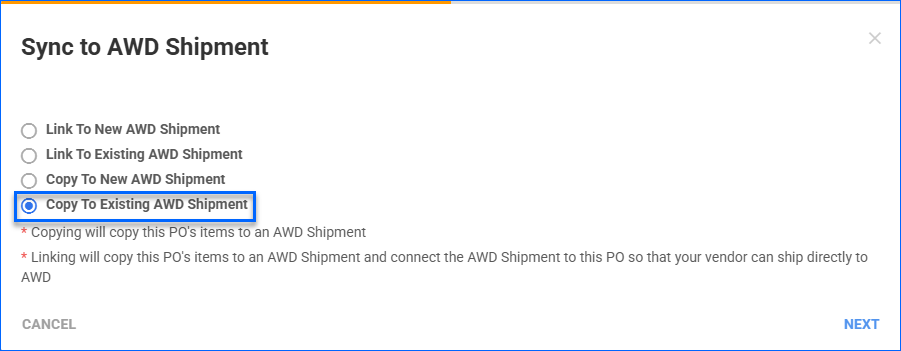
- In the Sync to AWD Shipment pop-up modal, select Copy To Existing AWD Shipment.
- Click Next.
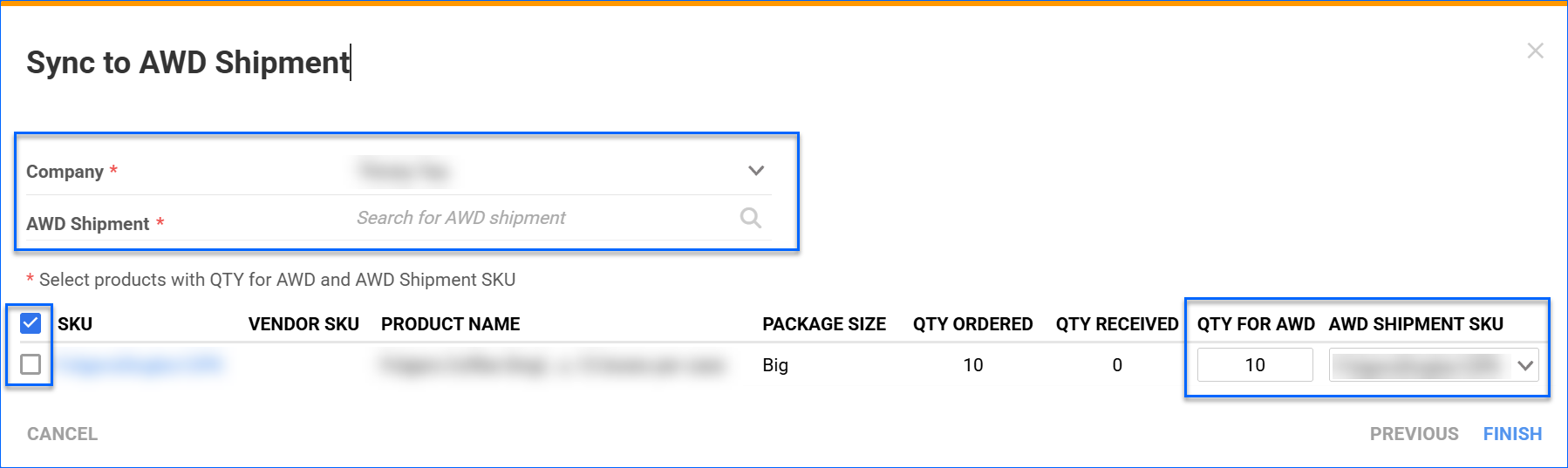
- Select a Company.
- Search for an existing shipment either by Shipment ID or Description (Name).
- Select the SKUs from the PO that you want to copy over. If you are sending a Shadow SKU to Amazon, here you can select the Shadow ID to add to the Shipment.
- When you are ready, click Finish.
Unlink PO and AWD Shipment
You can remove the link between a Purchase Order and an AWD Inbound Shipmentonly from the PO Details page.
To do that:
- Go to Purchasing > Manage POs.
- Open the Purchase Order Details page.
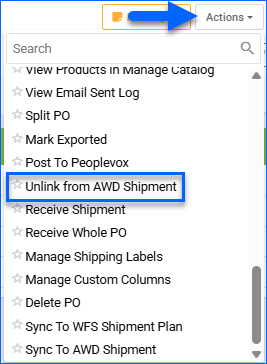
- From Actions > Unlink from AWD Shipment.
 Once you have unlinked the PO and the Shipment, you won’t be able to re-link them, because the Purchase Order will retain the items copied over from the original linking. If you want to re-establish the connection, you can either remove all products from the PO Details Page > Toolbox > Items or cancel the PO and create a new one.