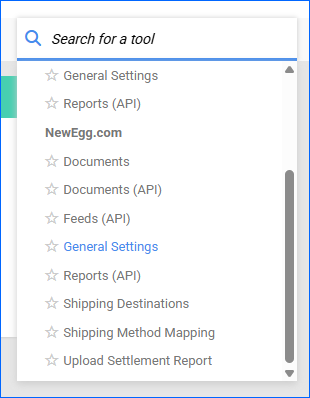
Overview
Integrating Newegg with your Sellercloud account allows you to manage your Listings seamlessly, monitor the status of your Orders, configure various Product Properties, and Track Performance. By automating key processes and customizing your workflow, you can not only save valuable time but also enhance overall efficiency.
This article describes the available Newegg General Settings in Sellercloud and links to related articles for more information. To explore other related topics, refer to our Newegg Category.
Newegg General Settings
To configure your Newegg General Settings:
- Go to Company Settings.
- Click Toolbox and select Newegg.com > General Settings.
- Click Edit and refer to the tables in the following sections for descriptions of the settings.
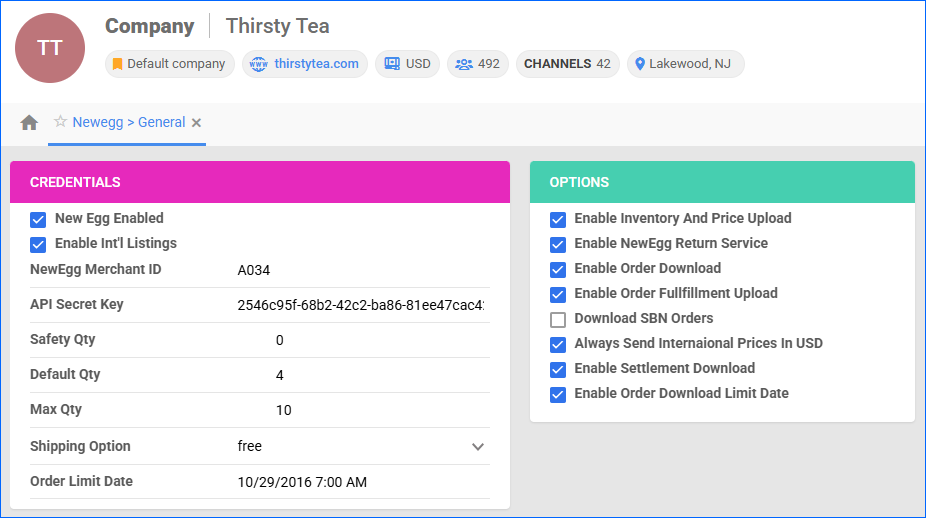
Credentials
Refer to this table for descriptions of the options in the Credentials panel.
| Setting | Description |
| Newegg Enabled | Enable the integration along with all related configured settings. Required for order imports, tracking uploads, inventory and price updates, and listing syncs. |
| Enable Int’l Listings | Enable international listings so you can choose any shipping destination. |
| Newegg Merchant ID | Your unique seller account identifier at Newegg, which links your store to the API integration in Sellercloud. |
| API Secret Key | A confidential token generated by Newegg to securely authenticate API calls from Sellercloud. |
| Safety Qty | A default Safety Quantity for your listings, subtracted from the Available Quantity and not included in the inventory feed to prevent overselling. The default value configured here will apply only if you check the Default box next to Safety Qty on the Newegg Product Properties page. |
| Default Qty | This only applies to Replenishable Products. For such products, the Default Quantity is the number that will always be sent to the channel in inventory updates, regardless of the actual available inventory. The default value configured here will apply only if you check the Default box next to Default Qty on the Newegg Product Properties page. |
| Max Qty | Limits the product inventory displayed as available on your listings to never show the full quantity on Newegg when there is more. The default value configured here will apply only if you check the Default box next to Max Qty on the Newegg Product Properties page. |
| Shipping Option | If you set it to Default, you will charge shipping based on how Newegg charges shipping for the item. Free means you will not charge shipping for the item’s default shipping method. |
| Order Limit Date | Prevent orders created before the specified date from being downloaded into Sellercloud. You must check the Enable Order Download Limit Date box in the Options panel to enable this setting. |
Options
Refer to this table for descriptions of the options in the Options panel.
| Setting | Description |
| Enable Inventory and Price Upload | Automatically send inventory and price updates from Sellercloud to Newegg. Only enable this setting once you are ready to have Sellercloud control your inventory on Newegg. Note that products that are not Newegg-Enabled will be updated with a quantity of 0. |
| Enable Newegg Return Service | Enable Newegg’s return-processing service (Newegg handles customer returns and routing) instead of you managing returns directly. |
| Enable Order Download | Automatically download orders from Newegg to your Sellercloud account. |
| Enable Order Fulfillment Upload | Automatically send tracking information from Sellercloud to Newegg. |
| Download SBN Orders | Download of orders fulfilled via Newegg’s “Shipped by Newegg” (SBN) service into Sellercloud |
| Always Send International Prices in USD | Force Sellercloud to send pricing in USD for international listings on Newegg, regardless of local currency settings. |
| Enable Settlement Download | Automatically download Settlements from Newegg to Sellercloud. |
| Enable Order Download Limit Date | Enable the Order Limit Date set in the Credentials panel to prevent orders created before it from being downloaded into Sellercloud. |
Newegg Actions
To access the Newegg channel actions:
- Go to the Newegg.com > General Settings page.
- Click Actions and select:
- Test API Credentials – Verify that the Newegg Merchant ID and API Secret Key entered in Sellercloud are valid and that Sellercloud can successfully authenticate and communicate with Newegg’s API. This confirms the integration is properly connected before you begin sending or receiving data.
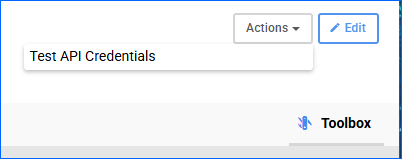
- Test API Credentials – Verify that the Newegg Merchant ID and API Secret Key entered in Sellercloud are valid and that Sellercloud can successfully authenticate and communicate with Newegg’s API. This confirms the integration is properly connected before you begin sending or receiving data.
Newegg Toolbox
To access additional pages with settings related to Newegg:
- Go to the Company Settings page.
- Click Toolbox and select from the following options:
- Documents – Displays non-API communication records between Sellercloud and Newegg.
- Documents (API) – Displays the API communication records between Sellercloud and Newegg—such as listing uploads, inventory/price updates, shipment notifications—and enables you to check for error messages and processing status.
- Feeds (API) – Provides access to the batch data-feeds sent to Newegg (for item data, inventory & pricing, shipments, etc.) so you can view and monitor what was uploaded and when.
- Reports (API) – Shows the list of report types available from Newegg (orders, inventory, settlement summaries and transactions, voided orders, etc.) along with their generation status.
See Newegg Documents and Reports for more information about the Documents (API), Feeds (API), and Reports (API) tabs.
- Shipping Destinations – Allows you to enable specific countries as destinations for international shipping.
- Shipping Method Mapping – Lets you map the shipping methods sent for each Newegg order to a preferred shipping carrier and service.
- Upload Settlement Report – Allows you to import Newegg Commission Reports.