
Overview
Walmart Marketplace’s Simplified Shipping Settings is an automated shipping configuration framework that selects your fulfillment services and generates delivery‑promise dates using real‑time carrier data and predefined priority. When you configure and apply these settings to your orders, Walmart automatically calculates transit times based on the carrier service, the fulfillment center from which the order ships, and the customer’s delivery address.
Sellercloud allows you to create and configure Simplified Shipping Settings from within your account and upload them back to Walmart. Alternatively, if you have an existing Walmart Simplified Shipping configuration you can import it directly into Sellercloud.
Prerequisites
Before configuring your Simplified Shipping Settings, ensure the following requirements are met:
- Have an active Walmart Marketplace seller profile, integrated with your Sellercloud account.
- Navigate to your Walmart Seller Center’s General Settings page and verify that the Enable Simplified Shipping Settings option is activated.
- Ensure the Enable Simplified Shipping Settings option is also activated in your company’s General Settings page in Sellercloud.
- Your fulfillment centers and their locations already exist in your Walmart Marketplace Seller profile and are imported into Sellercloud. If any of your fulfillment centers aren’t listed on Walmart, here you can find more information on adding them.
- You have assigned inventory to your fulfillment centers.
Manage Simplified Shipping Settings
Walmart’s Simplified Shipping Settings use real‑time carrier‑network data to align your promised delivery dates with actual transit expectations. When configuring these settings, define your preferred carriers, services, and regional coverage, then refine options per fulfillment center as needed. If your configuration includes multiple shipping services, the Shipping Priority you choose determines which service Walmart uses to generate delivery‑promise dates. You can prioritize:
- Speed – (recommended) Walmart automatically uses the fastest service based on real‑time transit information.
- Cost Savings – Walmart selects the slower, more economical service to help minimize shipping costs.
After completing your Simplified Shipping configuration, your items must be migrated to adopt the new settings.
Shipping Options By Region
Defining Shipping Options by Region enables precise routing logic based on carrier availability, service performance, and cost variations across U.S. regions. Multiple regional configurations give you the flexibility to offer different speeds, pricing models, or service levels depending on where your customers are located.
To add Shipping Options by Region:
- Navigate to Settings > Companies > Manage Companies and open the required company.
- From the Toolbox, select Walmart Marketplace > Simplified Shipping Settings.
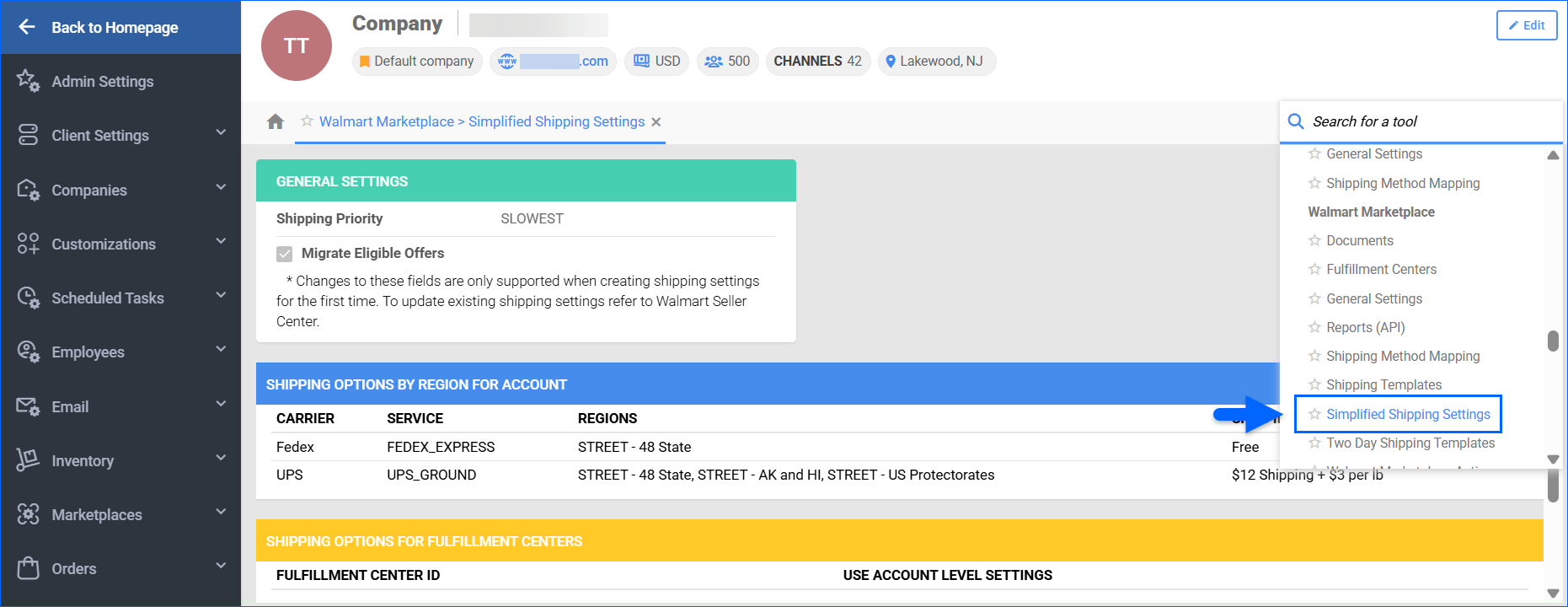
- Click Edit.
- In the Shipping Options by Region for Account panel, click the + sign to add a new shipping option.

- In the pop-up modal, select:
- Shipping Carrier – either Fedex, UPS, or USPS.
- Shipping Method – the specific service to apply to this rule.
- Regions – The contiguous 48 U.S. states are selected by default, but you can set any combination of locations.
- Shipping Charges – either Free Shipping, or Paid Shipping (to enable price‑based or weight‑based charges in the next step, if applicable).
- Once done, click Add and the new Regional Setting will appear in the list.

Shipping Priority
When you configure more than one Regional Shipping rule, the Shipping Priority selected in the General Settings panel determines which method Walmart uses to produce delivery‑promise dates:
- Slowest – The most economical shipping configuration will be selected.
- Fastest – The fastest delivery configuration will be selected.

Migrate Eligible Offers
Eligible Walmart Marketplace items can be transitioned to your Simplified Shipping Settings when you check Migrate Eligible Offers. This way you can apply the newly defined shipping rules to all published listings that meet Walmart’s Simplified Shipping eligibility criteria. Be sure to enable this option prior to uploading your settings to Walmart so the migration occurs as part of the configuration.
Fulfillment Centers Shipping Options
The Shipping Options for Fulfillment Centers panel lists all Walmart’s Fulfillment centers imported into Sellercloud and lets you refine their shipping logic. After defining regional strategies, you can use these settings to determine whether each warehouse follows the global shipping configuration or utilizes its own customized rules. This flexibility is ideal when fulfillment centers differ in carrier availability, performance profiles, or cost structures.
To set custom Shipping Options for Fulfillment Centers:
- Navigate to Settings > Companies > Manage Companies and open the required company.
- From the Toolbox, select Walmart Marketplace > Simplified Shipping Settings.
- Click Edit.
- In the Shipping Options for Fulfillment Centers panel, click the + sign to add a new shipping option.

- In the pop-up modal, select:
- Shipping Carrier – either Fedex, UPS, or USPS.
- Shipping Method – the specific service to apply to this rule.
- Regions – The contiguous 48 U.S. states are selected by default, but you can set any combination of locations.
- Shipping Charges – either Free Shipping, or Paid Shipping (to enable price‑based or weight‑based charges in the next step, if applicable).
- Once done, click Add and the carrier configuration will be saved for the particular Fulfillment Center. To update Shipping Options for Fulfillment Centers, click the pencil icon, update the details in the pop-up modal, and click Save Changes.

The Use Account Level Settings checkbox controls whether Sellercloud enforces the global shipping settings or evaluates the fulfillment center’s custom configuration. When left unchecked, the system applies the center‑specific carrier, service, and coverage parameters.
Upload Simplified Shipping Settings to Walmart
Once done configuring your Shipping Priority, Regional Settings and Fulfillment Center rules, you can upload them to Walmart. To do this, navigate to the Shipping Options by Region for Account panel and click Create/Upload Simplified Shipping Settings to Walmart.
Download Simplified Shipping Settings from Walmart
If your Simplified Shipping Settings are already configured in your Walmart Seller Center with carriers, services, fulfillment center locations and regions, you can import the data into Sellercloud, by navigating to the Shipping Options by Region for Account panel and selecting Download Simplified Shipping Settings.

Products Simplified Shipping
By default, any listing that meets Walmart’s eligibility requirements can adopt your account‑level Simplified Shipping Settings. However, if certain SKUs need to follow specific rules while others remain on different configurations, Sellercloud allows you to control these settings at the product level. You can enable or disable Simplified Shipping Settings for an individual SKU, or apply the same preference to multiple listings in bulk.
Update Per Product
To control whether a listing uses your Simplified Shipping Settings:
- Navigate to Catalog > Manage Catalog and open the required product.
- From its Toolbox, select Walmart Marketplace.

- Click Actions and select Enable Simplified Shipping Settings.
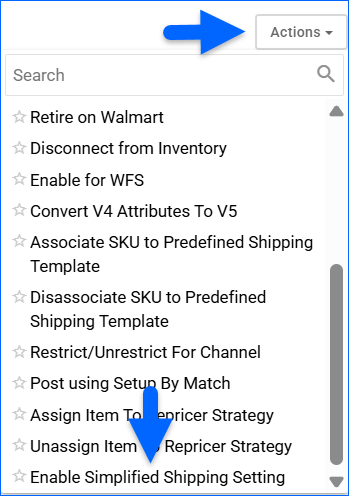
- The change will be reflected in Walmart and in the product’s Shipping panel.
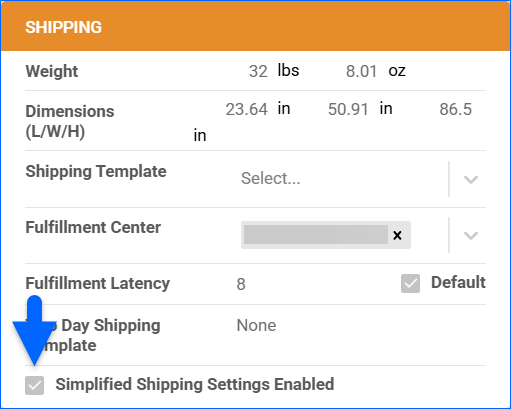
Update In Bulk
To update the Simplified Shipping Settings for multiple listings at once:
- Navigate to Catalog > Manage Catalog to find the required products and select them.
- Click the blue Actions button and select the needed action:
- Assign Simplified Shipping Settings on Walmart Marketplace
- Unassign Simplified Shipping Settings on Walmart Marketplace

- A Queued job will be created and when it’s successfully completed, the products’ Simplified Shipping Settings will be updated.