Overview
DHL eCommerce (formerly DHL Global Mail) is a shipping consolidator that offers both domestic and international delivery services. Similar to UPS Mail Innovations and FedEx SmartPost, DHL eCommerce collects packages from your warehouse and transports them to a regional center, after which a local carrier (e.g., USPS) completes the final delivery. This article explains how to integrate DHL eCommerce with Shipbridge and configure printing and shipping settings.
Integrate with DHL eCommerce
To integrate DHL eCommerce with Shipbridge and configure the related settings:
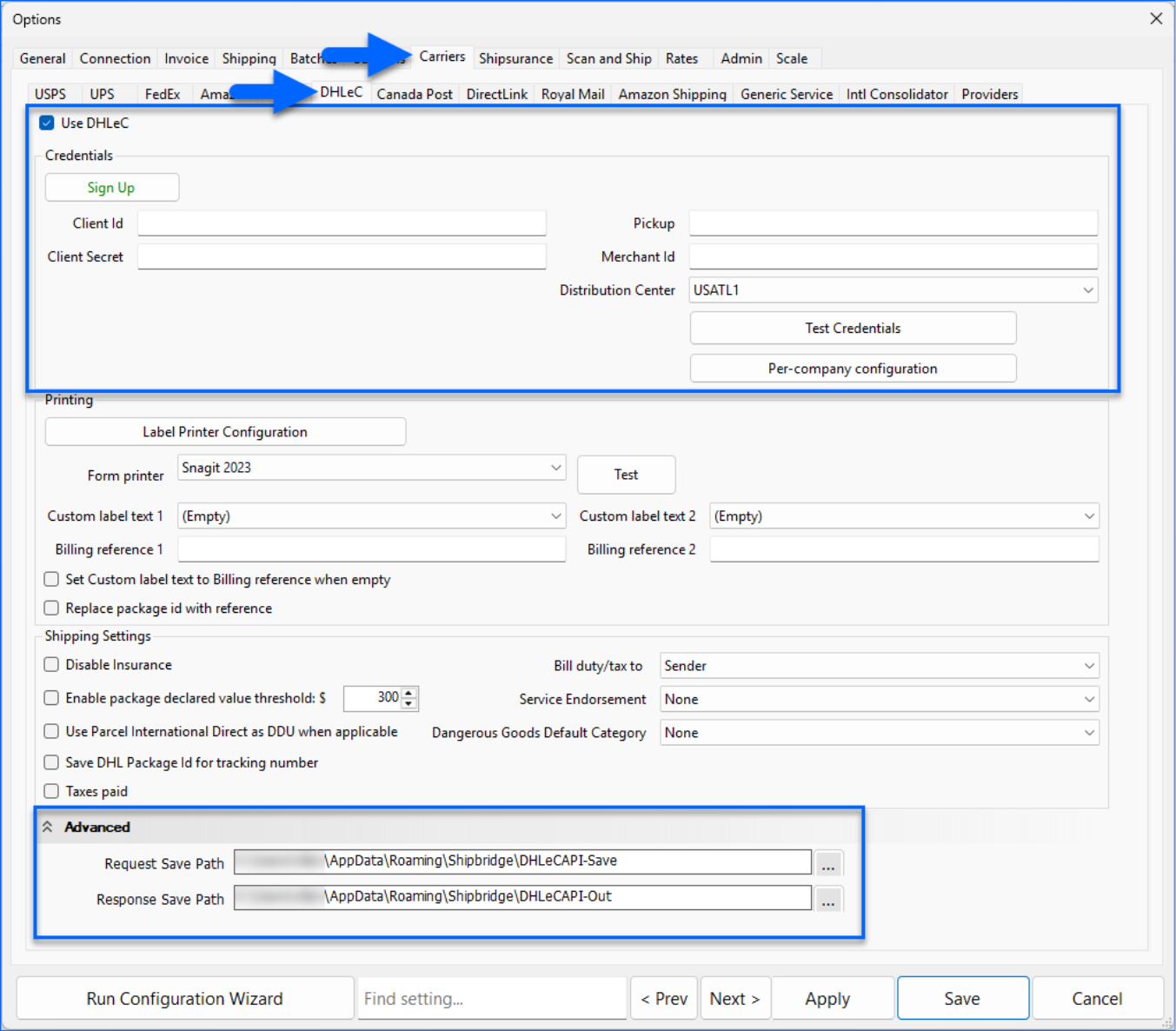
- Go to Menu > Options > Carriers > DHLeC.
- Enable Use DHLeC.
- Enter the required credentials:
- Client ID – API Client ID provided by DHL.
- Client Secret – API Client Secret used for authentication.
- Pickup – DHL Pickup Partner Number for scheduled pickups.
- Merchant ID (Optional) – DHL Merchant Identifier.
- Distribution Center – Code of the DHL distribution center where packages enter the DHL network.
- In the Advanced section, ensure the Request Save Path and Response Save Path point to existing, accessible folders. The request path should end with DHLeCAPI-Save, and the response path is typically DHLeCAPI-Out.
- Click Test Credentials to verify the connection.
- Click Save.
Next, configure your label printing settings.
Configure Label Printing
To configure DHL eCommerce label printing:
- Go to Menu > Options > Carriers > DHLeC.
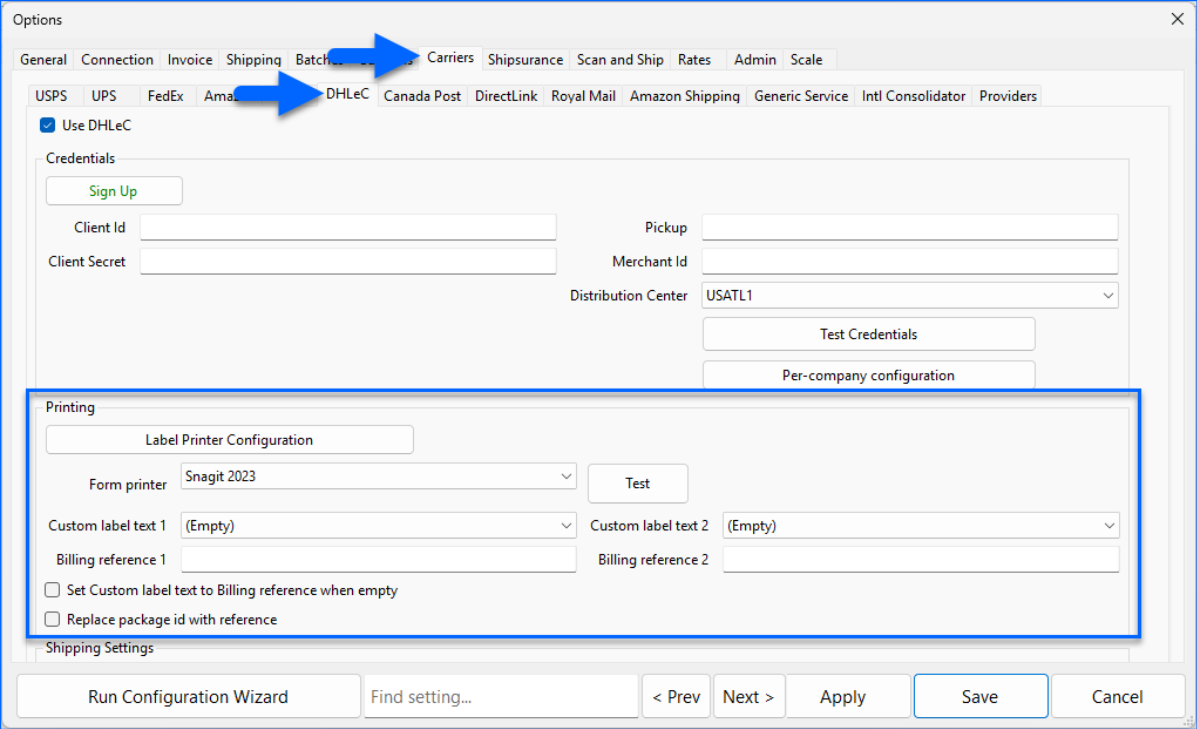
- In the Printing section, click Label Printer Configuration.
- From the Select Service dropdown, choose the DHL eCommerce services you intend to use and click Add. You can designate different printers for each service, or select a default printer for all services.
To set a default printer, you only need to add one configuration line, where the shipping service and package type must be set to Default.
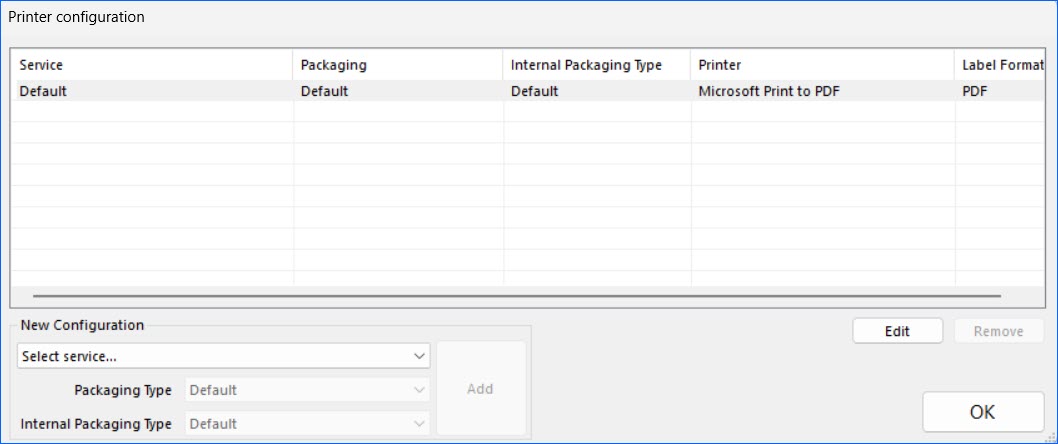
- Select the desired Printer and choose your Printer Type and Label Format.
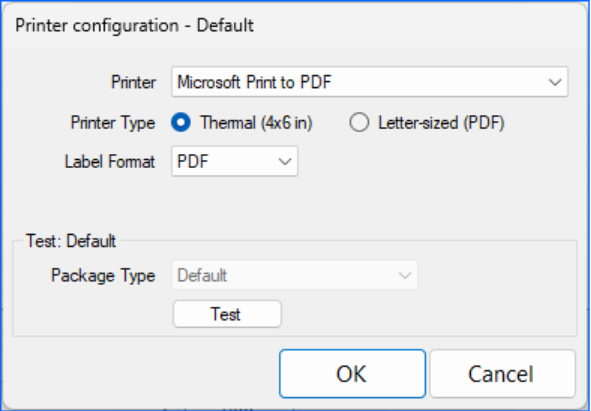
- Click Test to print a sample label, then click OK.
- Configure a Form Printer for additional documents.
- Configure remaining printing options as needed:
- Custom Label Text 1 / 2 – Optional text printed on the label.
- Billing Reference 1 / 2 – Optional billing reference printed on the label.
- Set Custom label text to Billing reference when empty – Copies custom text if billing reference is blank.
- Replace package ID with reference – Prints the billing reference instead of the package ID.
- Click Save.
Next, configure your shipping settings.
Configure Shipping Settings
To configure DHL eCommerce shipping settings:
- Go to Menu > Options > Carriers > DHLeC.
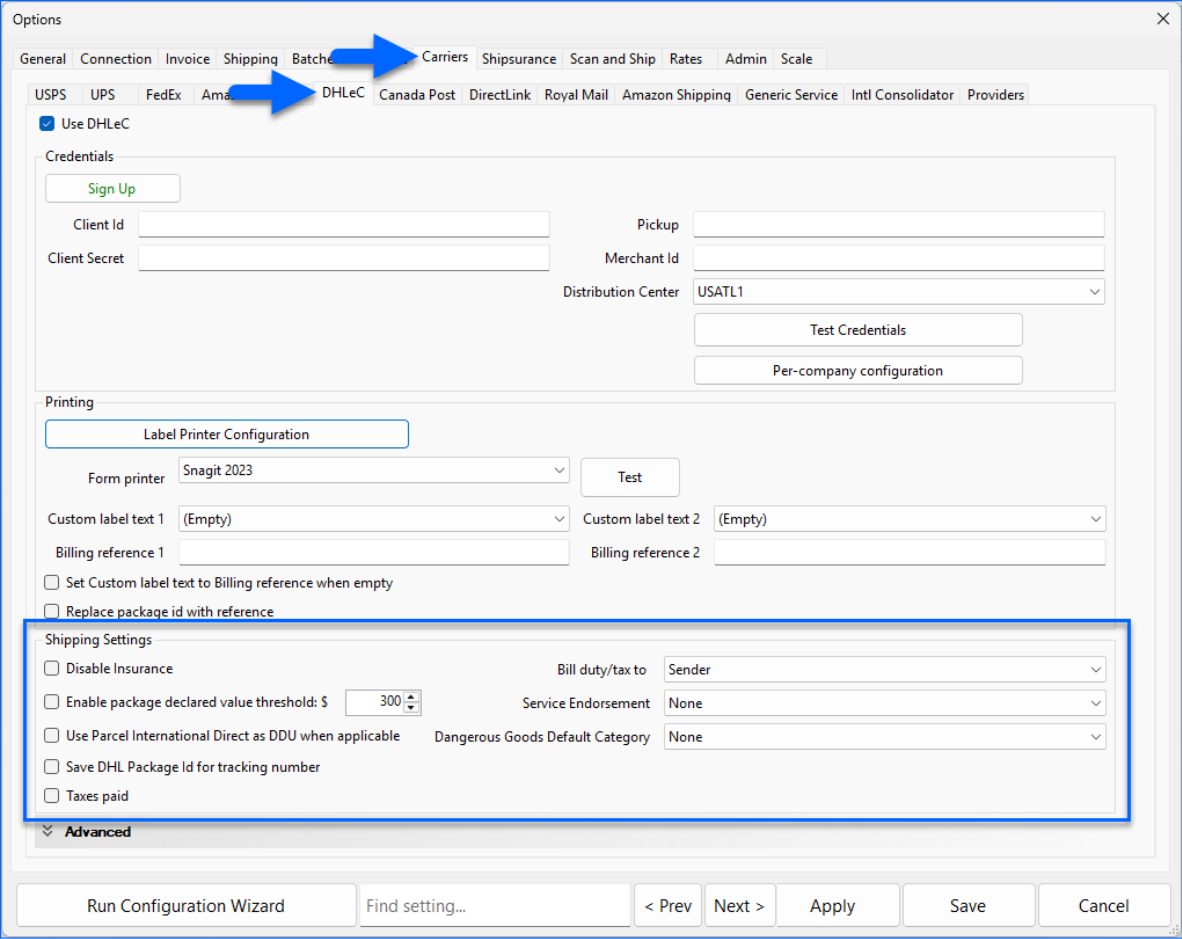
- Configure the Shipping Settings section.
- Disable Insurance – Turns off insurance options.
- Enable package declared value threshold – Sets the minimum value for insurance.
- Use Parcel International Direct as DDU when applicable – Enables DDU for eligible international shipments.
- Save DHL Package ID for tracking number – Uses the DHL Package ID as the order tracking number.
- Taxes Paid – Marks shipments as tax-paid.
- Bill duty/tax to – Sender, Recipient, or Third Party.
- Service Endorsement – Instructions for undeliverable shipments.
- Dangerous Goods Default Category – Default hazmat category for applicable shipments.
- Click Save.
If you also intend to ship internationally, first, you must contact DHL eCommerce to request approval for specific services.
Next, in Shipbridge, go to Menu > Customize Interface > Shipping Services and ensure that the services connected to your DHL eCommerce account are enabled.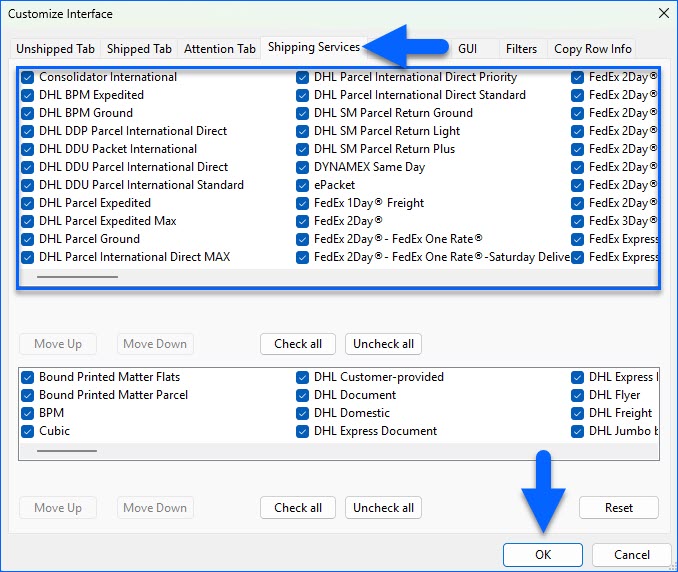
Parcel International Direct DDU
When shipping with DHL eCommerce Parcel International Direct, Shipbridge requests
DDP (Delivered Duty Paid) by default. However, you can enable Use Parcel International Direct as DDU when applicable to have the option to select DDU (Delivered Duty Unpaid) for your orders. This also ensures the Rate Calculator will display the correct DDU rates. This applies only to countries approved for DDU.
Ship Hazmat with DHL eCommerce
DHL eCommerce requires hazardous materials to be properly classified, packaged, and labeled as such.
- Set the Dangerous Goods Default Category in Shipbridge.
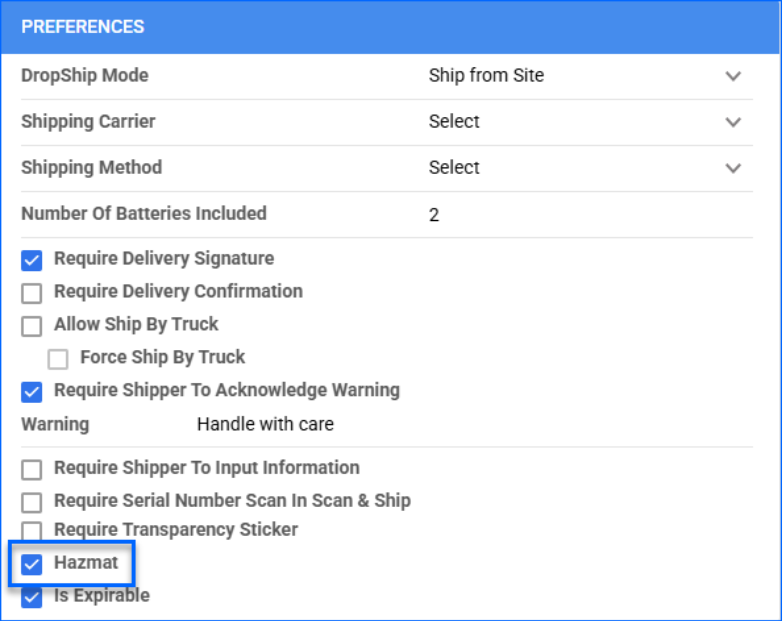
This applies globally and cannot be set per order. - Mark SKUs as Hazmat in Sellercloud via the Shipping Preferences on the Product Details Page.