
Overview
Shipbridge supports USPS label generation through its built-in integration with ShipRush. In this configuration, Shipbridge transmits USPS shipment requests via API to ShipRush. ShipRush then validates the shipment and returns the generated USPS label.
In this article, you will learn how to enable and configure ShipRush within Shipbridge to generate USPS labels.
Prerequisites
Before you can connect your ShipRush account with Shipbridge, ensure the following requirements are met:
- Download and install the latest Shipbridge version from the Sellercloud Support Portal.
- Have a ShipRush shipping account that supports USPS and obtain the respective API credentials. If you don’t have a ShipRush account, you must create one:
- (Recommended) Register through Shipbridge. Follow the instructions outlined in the section below.
- Register on the ShipRush portal.
Integrate ShipRush USPS with Shipbridge
Integrating ShipRush with Shipbridge is a simple and seamless process:
- Navigate to Menu > Options > Carriers > USPS.
- Enable the Use ShipRush option. All ShipRush-related settings will become available.
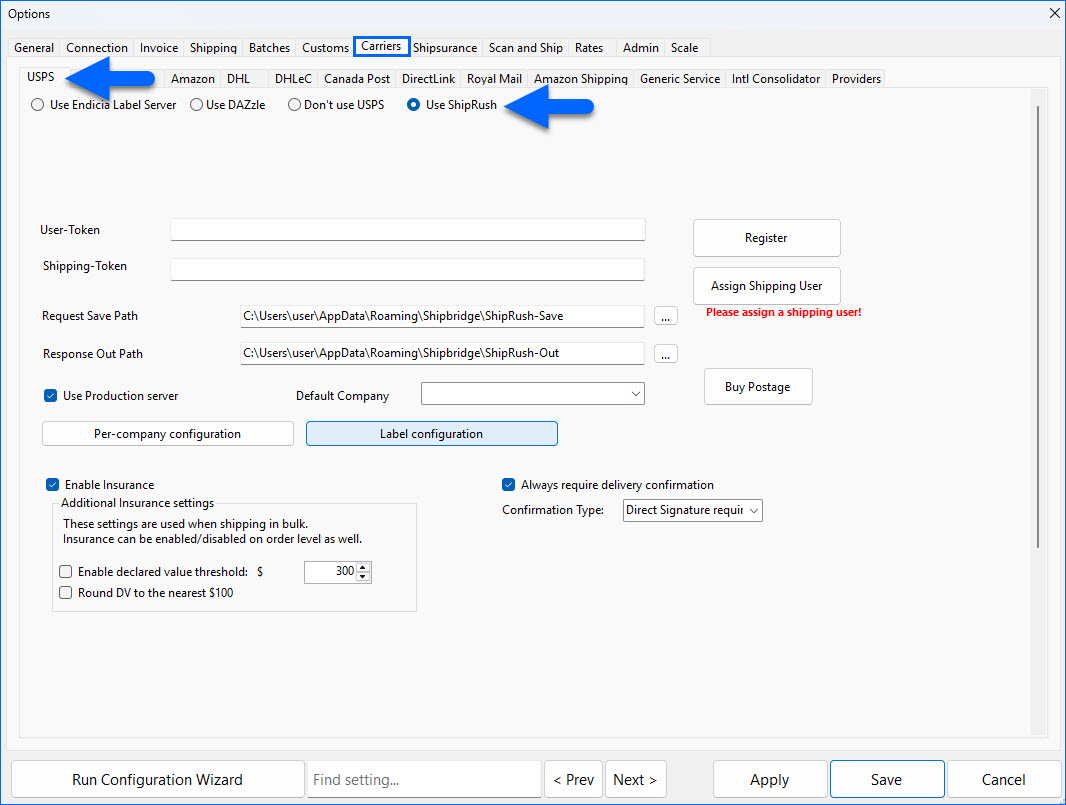
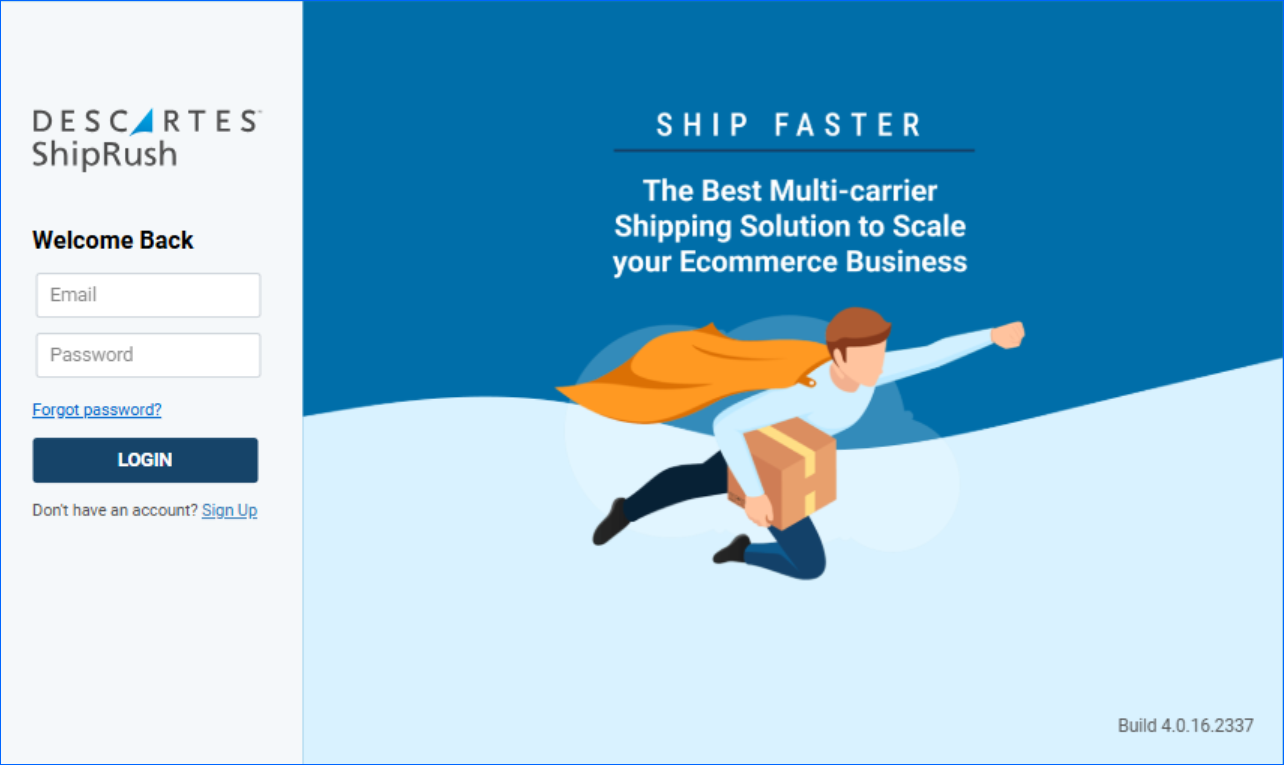
- Click Register to launch the ShipRush pop‑up window. From there, you can either:
-
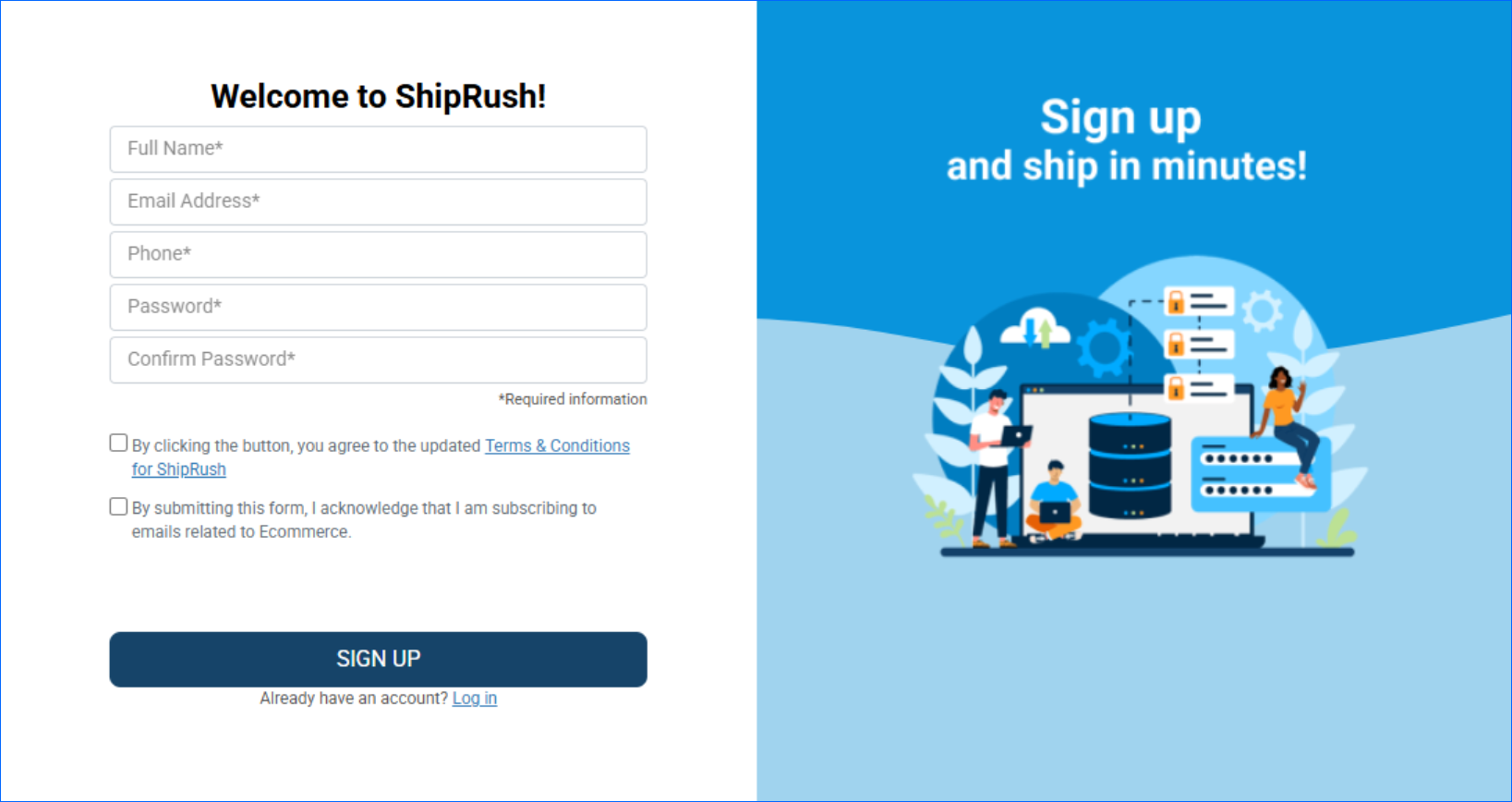
- Sign Up to create a New account.
- Login with an Existing account.
-
New ShipRush Account
To create a new ShipRush account:
- Fill out your contact details, agree to the terms and conditions and click Sign Up.
- Choose a subscription plan and activate it.
- Obtain your User Token and Shipping Token, and enable Two-Factor Authentication (2FA), as described in the section below.
Existing ShipRush Account
If you already have an existing ShipRush account, you must enable Two-Factor Authentication (2FA) and obtain API access tokens. To do that:
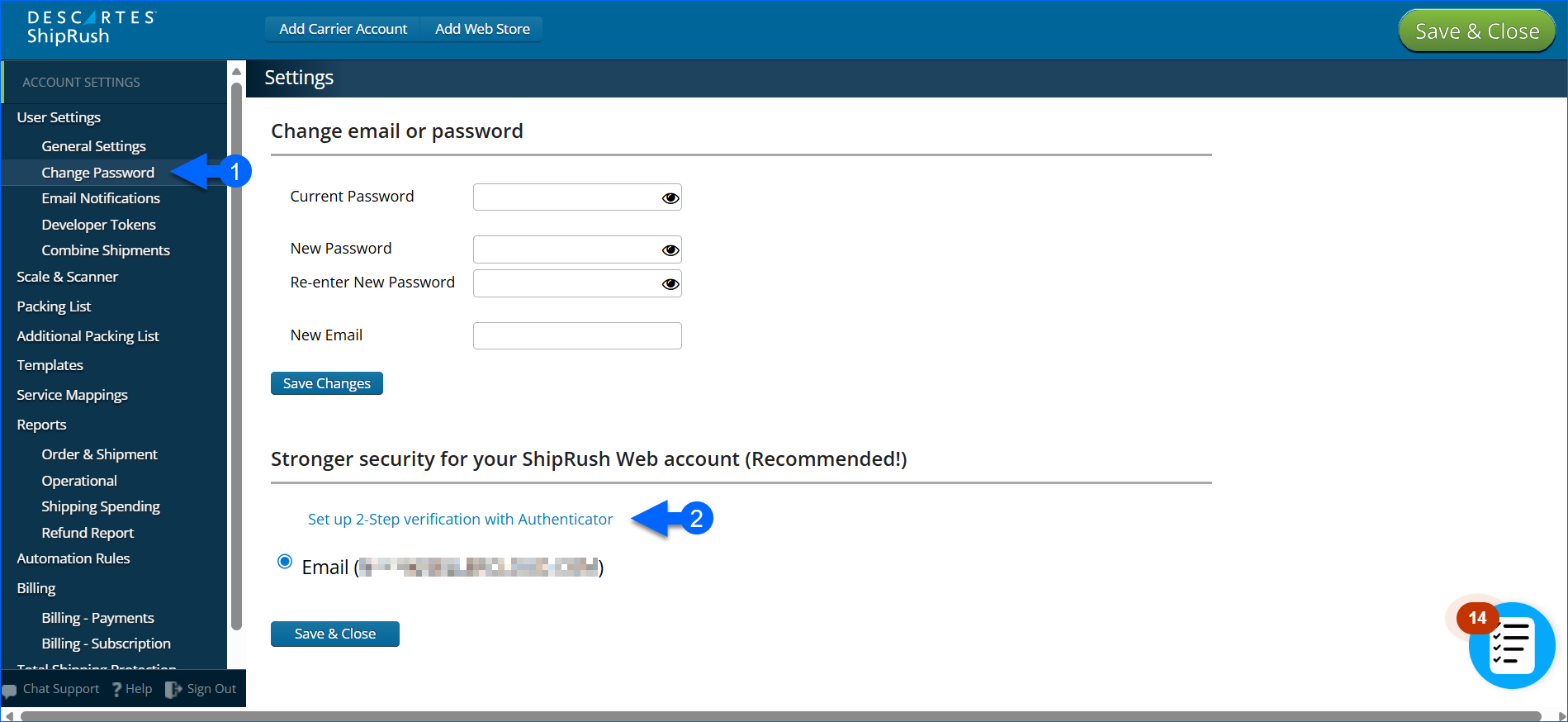
- Log in to your account and go to Settings > User Settings > Change Password.
- Enable Two-Factor Authentication (2FA). ShipRush requires 2FA before API tokens can be generated.
- Next, open a support ticket with ShipRush to request approval for Developer access associated with your account. Be sure to specify that you require production access. Once approved, you can retrieve your API tokens by going to Settings > User Settings > Developer Tokens.
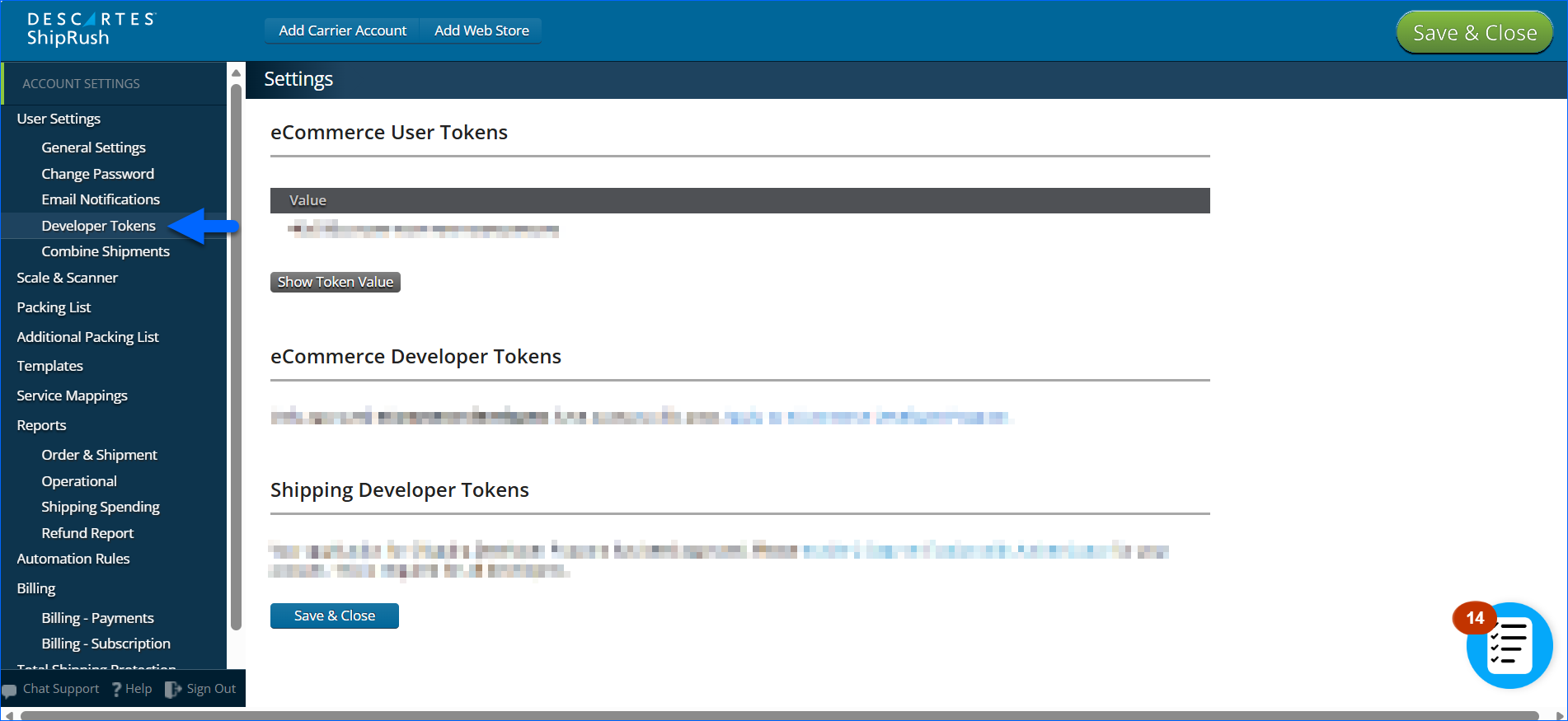
- Copy the User Token and the Shipping Token. You will need them to complete the configuration in Shipbridge.
- Locate your Shipping Account ID. It typically depends on how you set up ShipRush and which carrier you’re using. In this case, you must locate your USPS Account ID (Show me where!).
Once the User-Token, Shipping-Token and Shipping-AccountId are in their respective fields in Shipbridge, click Assign Shipping User, select your Default Company, and click Save.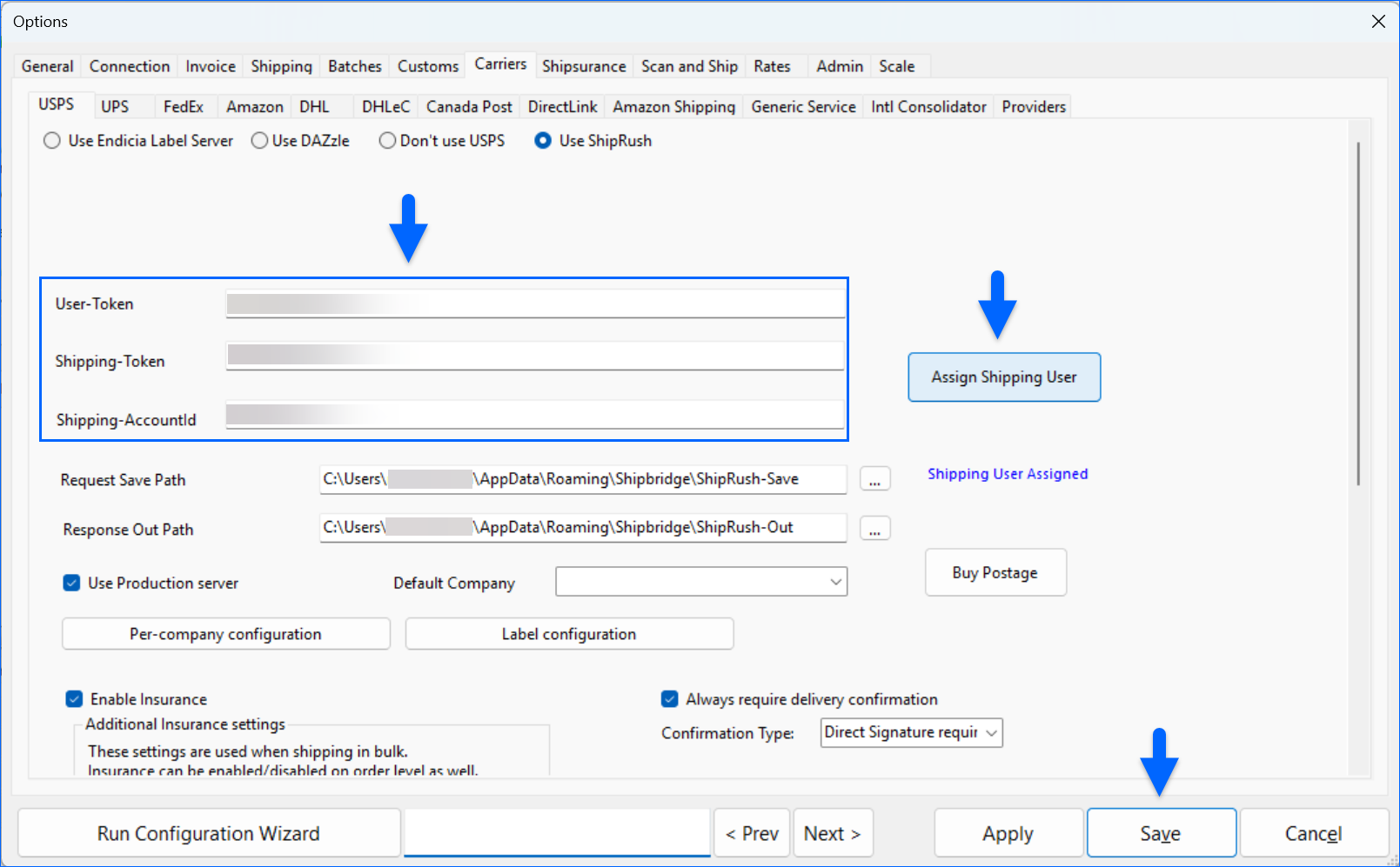
ShipRush USPS Features
Once ShipRush is connected, Shipbridge unlocks a full set of USPS shipping capabilities through ShipRush’s API. This includes real‑time rate retrieval, label generation, and additional USPS services such as insurance and delivery confirmation. You can:
- Configure and use different USPS label types suited for your printers and workflow.
- Retrieve accurate USPS rates before label creation.
- Generate USPS labels.
- Process End‑of‑Day (EOD) manifests.
- Add insurance when shipping eligible packages.
- Enable delivery confirmation services.
- Purchase postage directly through your ShipRush account.
These integrated capabilities ensure that USPS workflows run efficiently within Shipbridge while relying on ShipRush for all USPS‑compliant processing.