
Overview
Shipbridge imports paid orders from your connected sales channels, such as Amazon, eBay, Newegg, etc., into a single interface where they can all be fulfilled. In Shipbridge, you can easily find the amounts customers paid for shipping, as well as generate or void carrier labels.
Shipping Charges
Shipbridge can display the shipping amount charged to the customer directly in the Rate Calculator.
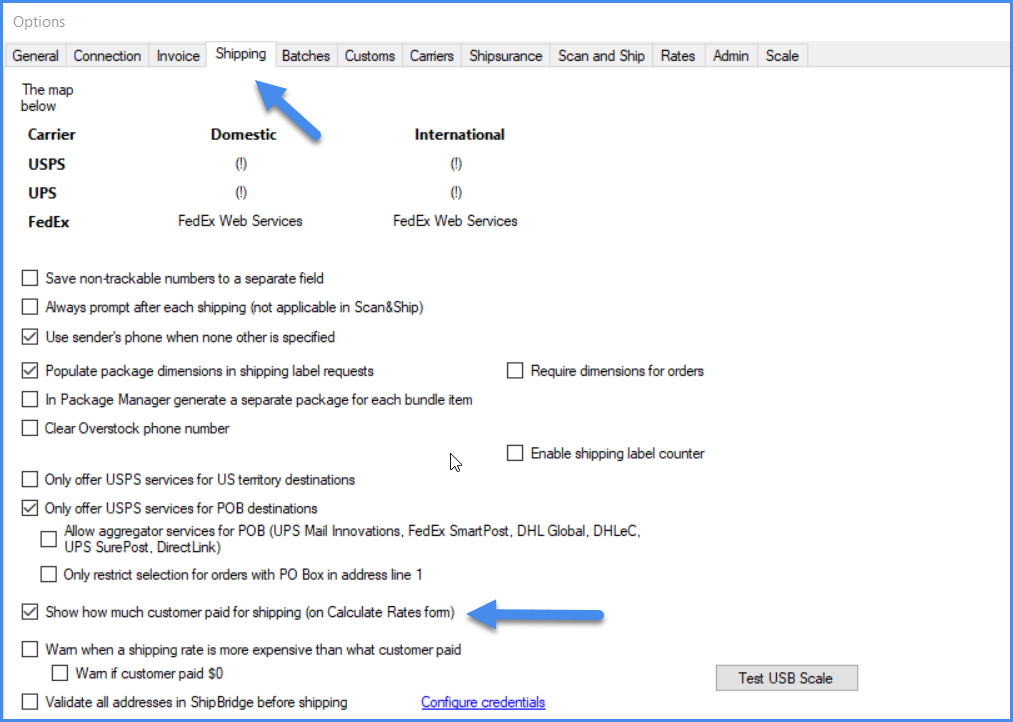
- Go to Menu > Options > Shipping tab.
- Select setting Show how much customer paid for shipping (on Calculate Rates form).
To see the amount the customer paid for shipping:
- Select an order from the grid.
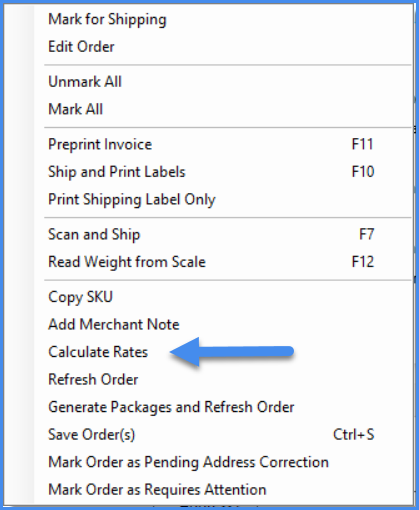
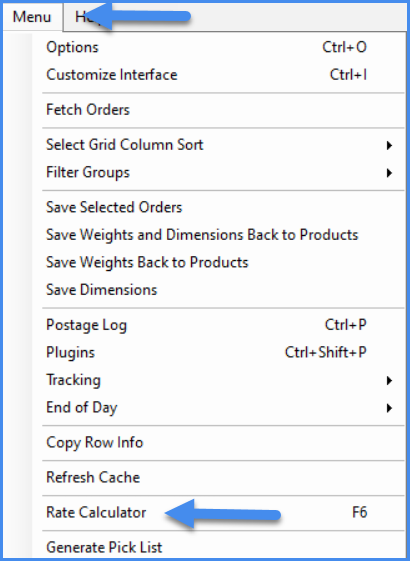
- Click Menu > Rate Calculator or the F6 hotkey. Alternatively, right-click an order > Calculate Rates.
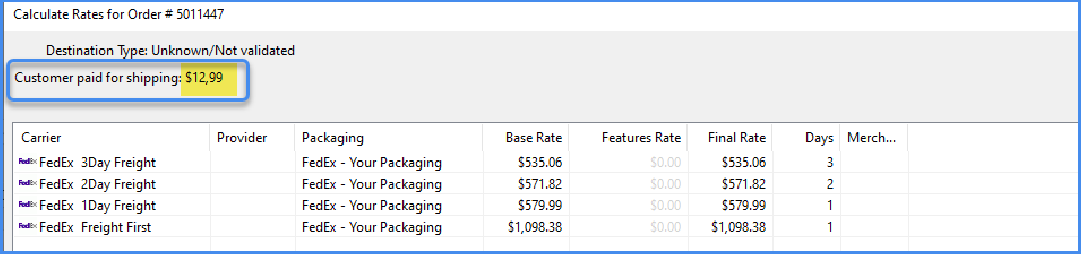
- The amount is shown above the rate grid.
View Your Shipping Costs
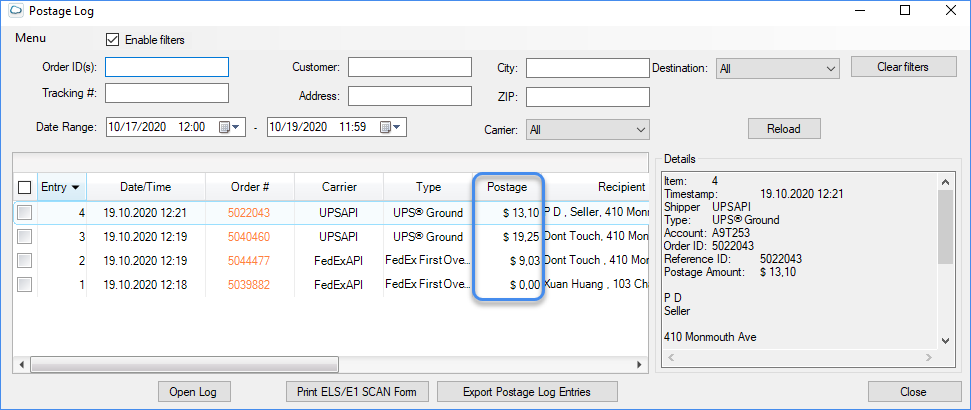
You can review the postage you paid for each shipment using the Postage Log. To view the rates you paid:
- Open the Shipbridge Menu.
- Open the Postage Log.

- The Postage column shows the amount you paid to ship the order. If the shipment was billed to a third party, the postage amount will show 0.00.
Unship Orders and Void Labels
The Postage Log lets you easily unship orders and request refunds for shipping labels you generated. The Refund Without Unshipping Order and the Refund And Unship Order actions both send a refund request to the carrier, and your label will be voided.
Refund a Label and Unship the Order
Use this when the order was shipped in error and needs both:
- The shipment voided
- The label refunded
- Go to Menu > Postage Log or use Ctrl+P hotkey.
- Choose the orders you wish to unship.
- Right-click > Refund And Unship Order.

Refund a Label Without Unshipping
Use this when the shipment has not yet left the warehouse, and you only need to void the label.
- Repeat steps 1 and 2 outlined above.
- Right-click > Refund Without Unshipping Order.

If an order is marked Refund, this means that your order is scheduled to be refunded. If your order is marked Refunded, this means your order has already been refunded.
