
Overview
Accurate inventory updates across channels depend on having the right product identifiers and settings in place. This article outlines the minimum product fields required for inventory to be pushed successfully to each channel. It assumes your account integrations and product listings are already active. To learn how to set up an integration and post listings, see each channel’s dedicated article instead.
General Requirements
Most channels will accept inventory updates as long as:
- The product is Enabled for that channel.
- The SKU on the channel matches either the Sellercloud ProductID or the channel‑specific Merchant SKU.
Enable or Disable Products
When a product is Enabled for a specific channel, Sellercloud automatically includes it in the inventory feed. If a product is Disabled, the update is either not sent or, in some channels, intentionally replaced with a 0 quantity update (e.g., Amazon) until the SKU is re-enabled.
There are three methods to Enable/Disable your products for a channel – individually, in bulk, and with a file import.
Individually
- Navigate to Catalog > Manage Catalog and find the required product.
- Open the product’s Toolbox and select the channel’s Properties.
- Click Edit, then check the Enabled box in the General panel.
- Click Save.

In Bulk
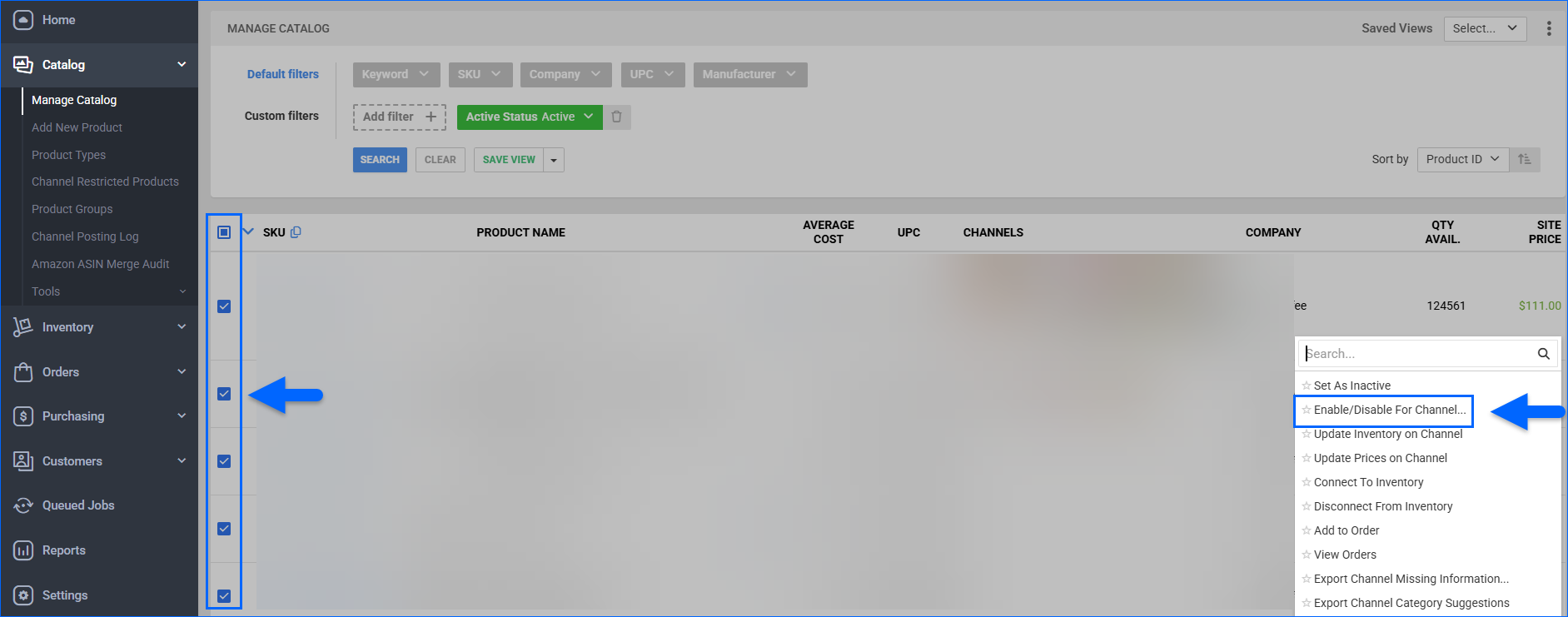
- Navigate to Catalog > Manage Catalog.
- Search for the required products and check the boxes to select them.
- Click the blue Action icon at the bottom and select Enable/Disable for Channel.
- Next, select the required Channel from the list.
- Select the action you want to perform for the selected products – Enable/Disable.
- Click Update. A Queued Job will be generated, and when it’s successfully completed, your products’ status will change.
File Import
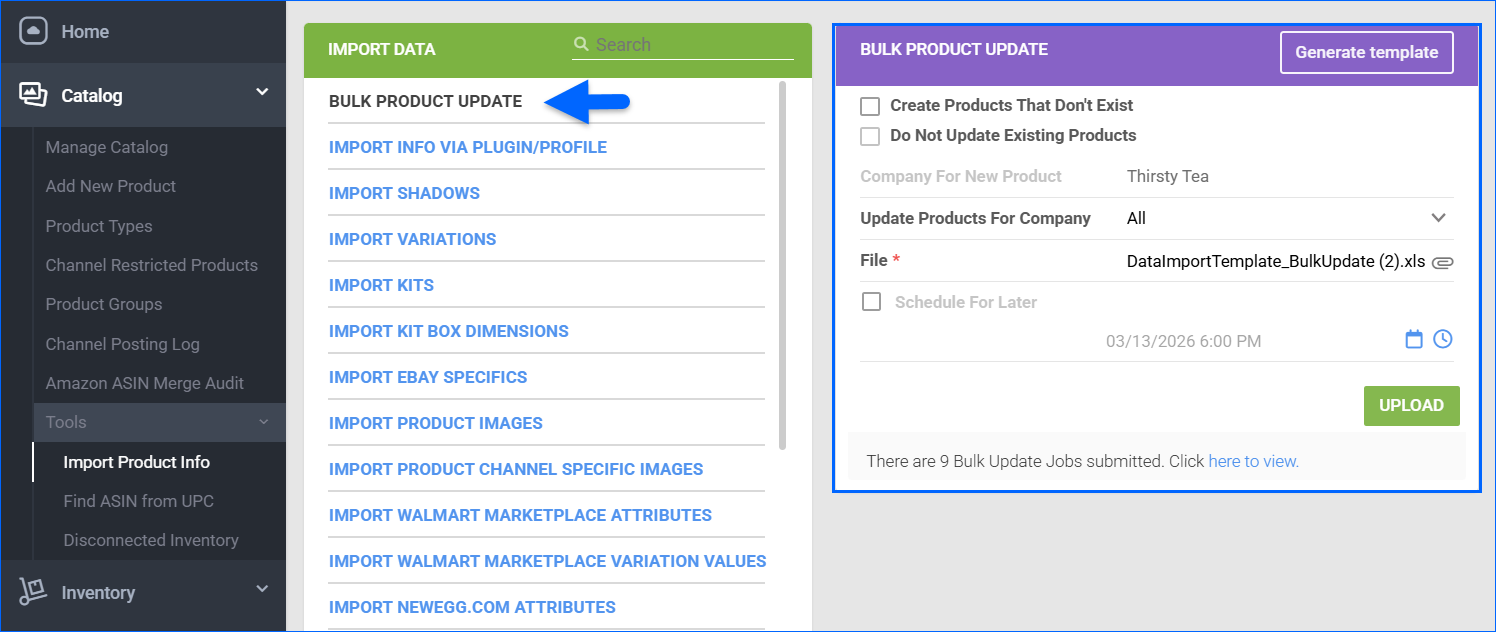
You can also enable and disable products for a channel with the Bulk Update Products tool:
- Navigate to Catalog > Tools > Import Product Info > Bulk Product Update.
- Click Generate Template.
- Select Create New Template and click Next.
- Select the file Format (either Tab Delimited, CSV or Excel) and Next.
- Add Columns To Template – search for the needed Channel_Enabled column and click Next.
- Click Download and save the file on your computer.
- Open the template, add the SKUs and select:
- True – To enable.
- False – To disable.
- Save the populated file and return to the Bulk Product Update panel.
- Click Select File, choose the template and click Upload. A Queued Job will be generated, and when it’s successfully completed, your products’ status will change.
Match Channel SKU
When the Sellercloud SKU matches the SKU on the marketplace, the channel can associate the incoming inventory update with the correct listing. To achieve this, either the ProductID or the channel‑specific Merchant SKU must match the SKU on the channel.
You can configure channel‑specific Merchant SKU individually and in bulk with a file upload.
Individually
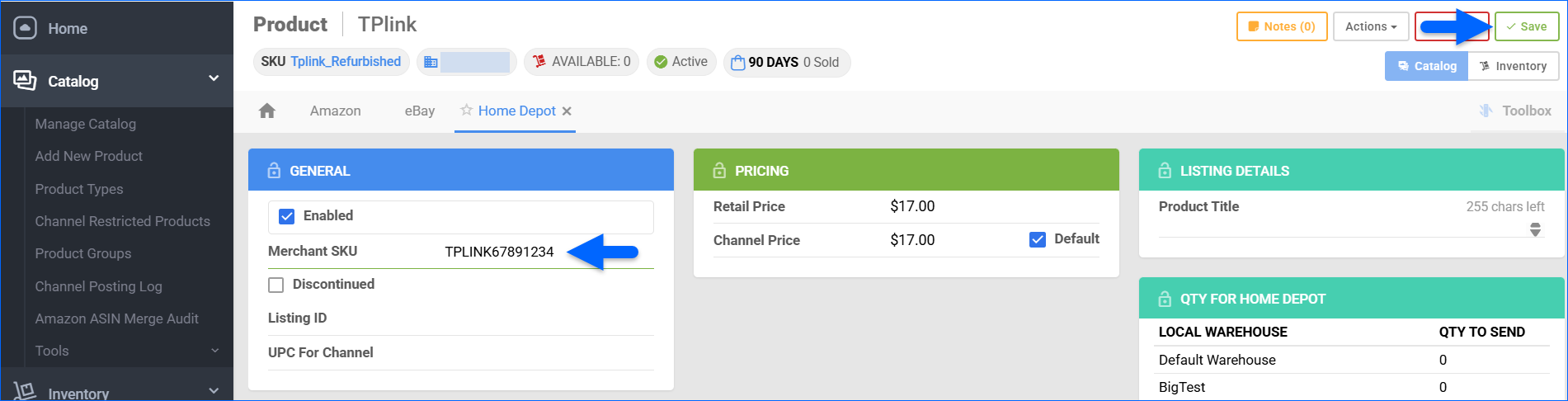
- Navigate to Catalog > Manage Catalog and find the required product.
- Open the product’s Toolbox and select the channel’s Properties.
- Click Edit, fill out the Merchant SKU in the General panel, and click Save.
Bulk Import
You can configure multiple channel-specific Merchant SKUs with the Bulk Update Products tool:
- Navigate to Catalog > Tools > Import Product Info > Bulk Product Update.
- Click Generate Template.
- Select Create New Template and click Next.
- Select the file Format (either Tab Delimited, CSV or Excel) and Next.
- Add Columns To Template – search for the needed Channel_MerchantSKU column and click Next.
- Click Download and save the file on your computer.
- Fill out the required fields, save the populated file and return to the Bulk Product Update panel.
- Click Select File, choose the template and click Upload.
Plugin Integrations
To include a product in inventory feeds, most plugin integrations also support custom product columns equivalent to a Merchant SKU (e.g., Mirakl_SKU, DSCO_MerchantSKU, Lowes_Vendor_SKU, MacysCH_MerchantSKU) and an Enabled flag (CHANNEL_Enabled). More information can be found in the integration’s dedicated article.
Additional Requirements
Some channels have additional product requirements to sync inventory data, such as UPC, Product Price, Variation specifics, etc. For example, if a product is set up as a variation on the channel, it must also be configured as a variation in Sellercloud with the same variation children. Otherwise, the variation children’s inventory updates will fail.
If all requirements are met and the channel’s inventory control is enabled, the product inventory feed should be pushed successfully.
Requirements by Channel
Below are the essential fields and conditions you must confirm before inventory updates can be processed correctly to each channel. This list includes the most common integrations, but is not exhaustive.
Amazon
- The product must be Enabled for Amazon.
- Sellercloud’s ProductId or Amazon Merchant SKU must match the SKU in Amazon.
More information on the Amazon integration, products and listings specifics can be found here.
eBay
- The product must be Enabled for eBay.
- Sellercloud’s ProductId or Merchant SKU must match the channel SKU.
- eBay Variation products must be configured as variations in Sellercloud with the same variation children.
More information on the eBay integration, products and listings specifics can be found here.
Walmart Marketplace
- The product must be Enabled for Walmart Marketplace.
- Sellercloud’s ProductId or Merchant SKU must match the channel SKU.
More information on Walmart Marketplace integration, products and listings specifics can be found here.
Walmart DSV
- The product must be Enabled for Walmart DSV.
- Sellercloud’s ProductId or Merchant SKU must match the channel SKU.
More information on Walmart DSV integration, products and listings specifics can be found here.
Shopify
- The product must be Enabled for Shopify.
- Sellercloud’s ProductId or Merchant SKU must match the channel SKU.
- Shopify Variation products must be configured as variations in Sellercloud with the same variation children.
More information on Shopify integration, products and listings specifics can be found here.
Etsy
- The product must be Enabled for Etsy.
- Sellercloud’s ProductId or Merchant SKU must match the channel SKU.
- Channel’s Variation products must be configured as variations in Sellercloud with the same variation children.
- Product Price must be set.
More information on Etsy integration, products and listings specifics can be found here.
Target
- The product must be Enabled for Target.
- Sellercloud’s ProductId or Merchant SKU must match the channel SKU.
- UPC for the channel.
- Product’s Initial Cost.
- Target Web Tool ID
More information on Target integration, products and listings specifics can be found here.
Home Depot
- The product must be Enabled for Home Depot.
- Sellercloud’s ProductId or Merchant SKU must match the channel SKU.
- Channel’s Listing ID.
More information on Home Depot integration, products and listings specifics can be found here.
Newegg
- The product must be Enabled for Newegg.
- Sellercloud’s ProductId or Merchant SKU must match the channel SKU.
- Product Price must be set.
More information on Newegg integration, products and listings specifics can be found here.
Amazon Direct Fulfillment
- The product must be Enabled for Direct Fulfillment.
- Sellercloud’s ProductId or Merchant SKU must match the channel SKU.
More information on the Direct Fulfillment integration can be found here.
Back Market
- The product must be Enabled for Back Market.
- Sellercloud’s ProductId or Merchant SKU must match the channel SKU.
More information on Back Market integration and listings specifics can be found here.
BestBuy CA
- The product must be Enabled for Best Buy CA.
- Sellercloud’s ProductId or Merchant SKU must match the channel SKU.
- UPC for the channel.
More information on BestBuy CA account integration can be found here.
Nordstrom
- The product must be Enabled for Nordstrom.
- Sellercloud’s ProductId or Merchant SKU must match the channel SKU.
- UPC for the channel. You should also enable the integration’s DSCO_SendUPC custom company setting to include UPCs in the DSCO inventory export.
More information on the Nordstrom integration, products and listings specifics can be found here.
Mirakl
- The product must be Enabled for Mirakl.
- Sellercloud’s ProductId or Merchant SKU must match the channel SKU.
- Product Price must be set.
More information on Mirakl Channel integrations can be found here.
WooCommerce
- The product must be Enabled for WooCommerce.
- Sellercloud’s ProductId or Merchant SKU must match the channel SKU.
More information on WooCommerce account integration and product specifics can be found here.
BigCommerce
- The product must be Enabled for BigCommerce.
- Sellercloud’s ProductId or Merchant SKU must match the channel SKU.
- Channel’s Variation products must be configured as variations in Sellercloud with the same variation children.
More information on BigCommerce account integration, product specifics and listing management can be found here.
TikTok Shop
- The product must be Enabled for TikTok.
- Sellercloud’s ProductId or Merchant SKU must match the channel SKU.
More information on the TikTok Shop account integration can be found here.
Miva
- The product must be Enabled for Miva.
- Sellercloud’s ProductId or Merchant SKU must match the channel SKU.
- Channel’s Variation products must be configured as variations in Sellercloud with the same variation children.
More information on the Miva account integration can be found here.
Shift4Shop
- The product must be Enabled for Shift4Shop (aka 3DCart).
- Sellercloud’s ProductId or Merchant SKU must match the channel SKU.
- Channel’s Variation products must be configured as variations in Sellercloud with the same variation children.
More information on the Shift4Shop account integration can be found here.